A shop’s website shows a list of customers. That list came from the API’s response. To check the page, you read the response.
In the previous lesson you read a request and an API response that were already written down. This lesson is different. You send the request yourself, and then you read the API’s response that comes back.
The request you send
GET asks for information at an address
An API is a way for one program to ask another program for information. To get this shop’s customer list, the request needs two things: where to ask, and what to ask for.
The URL is the address. In this shop example, the address is https://shop.example.test/api/users. That address is not a real shop. The practice section uses a real one.
The action is the request method. GET asks the shop’s service to send back what is already at that address. This GET does not add a customer, and it does not change one. It only asks for the list.
You type the method and the URL into a request tool, then send it. The tool contacts the service. The API’s response appears in the tool, so you can read the list yourself.
This request sends no extra details
A request can also have headers and a body. A header is a named detail about the message. The body is data you send with the request.
This request does not need them. You are not sending a new customer’s name or email. You are only asking for the list.
Method: GET
URL: https://shop.example.test/api/users
Headers: None added
Body: None
The method and the URL together mean: send back the information at this address.
‘None added’ means you are not typing extra headers. The tool may still send some of its own. ‘Body: None’ means you are not sending any data. Do not type those words into a box. They are labels in this example, not text you enter.
A request can have an empty body and still get an API response with the customer list.
Read the API's response one part at a time
The status code says what happened
The status code is a three-digit number on the API’s response. For this GET, 200 means the request worked.
200 does not give you the customers’ names. The names are in the response body. Read the status to see that the request worked, then read the body to see who came back.
Content-Type names the format
The API’s response can have headers too. Content-Type says what format the body is written in. JSON is text that holds names and lists. The name application/json means the body is JSON.
You may see the header written like this:
Content-Type: application/json; charset=utf-8‘Content-Type’ is the header’s name. Everything after the colon is its value. The value begins with application/json, then a semicolon, then charset=utf-8.
application/json is the media type, the name of the format. charset=utf-8 is only a note about how letters are stored. It does not change the format. If a question asks for the media type, type application/json and stop at the semicolon. If there is no semicolon, type the whole value.
This header is on the API’s response. It describes the body that came back. This request did not send a body.
Find the first customer's name
The response body holds the customers. Here is a made-up API response with two of them:
Status code: 200
Headers:
  Content-Type: application/json; charset=utf-8
Body:
  [
    {"name": "Amina Cole"},
    {"name": "Ravi Shah"}
  ]
The square brackets hold the list. The first { } holds Amina Cole. The { } after the comma holds Ravi Shah. Each pair of braces is one customer’s JSON object.
Inside the first braces, ‘name’ is the label. The text beside it is Amina Cole. The quotation marks are not part of her name. The first customer’s name is Amina Cole.
The list is written on several lines so you can see the braces. The API can send the same list on one line. The names are still Amina Cole and Ravi Shah.
An empty list is written []. It has no JSON objects, so there is no first name. The status can still be 200. Look at the body to see whether any customers came back.
When no API response comes back
A status code is part of an API response. 404 means the service did answer, and the answer says it could not find what you asked for.
If nothing comes back, there is no status code. That is not a 404. Check the address, read any error the tool shows, and send the request again.
The method and the URL are what you send. The status, Content-Type, and body are the API’s response.
The practice uses TestKru, the course’s practice service. You send a real GET there. The people in that response are not Amina Cole and Ravi Shah.
Send the request in the assignment
Continue practicing: Send your first API request
The GET is already filled in. You send it, then take three answers from the API’s response: the status code, the first user’s name, and the media type. All three have to pass.
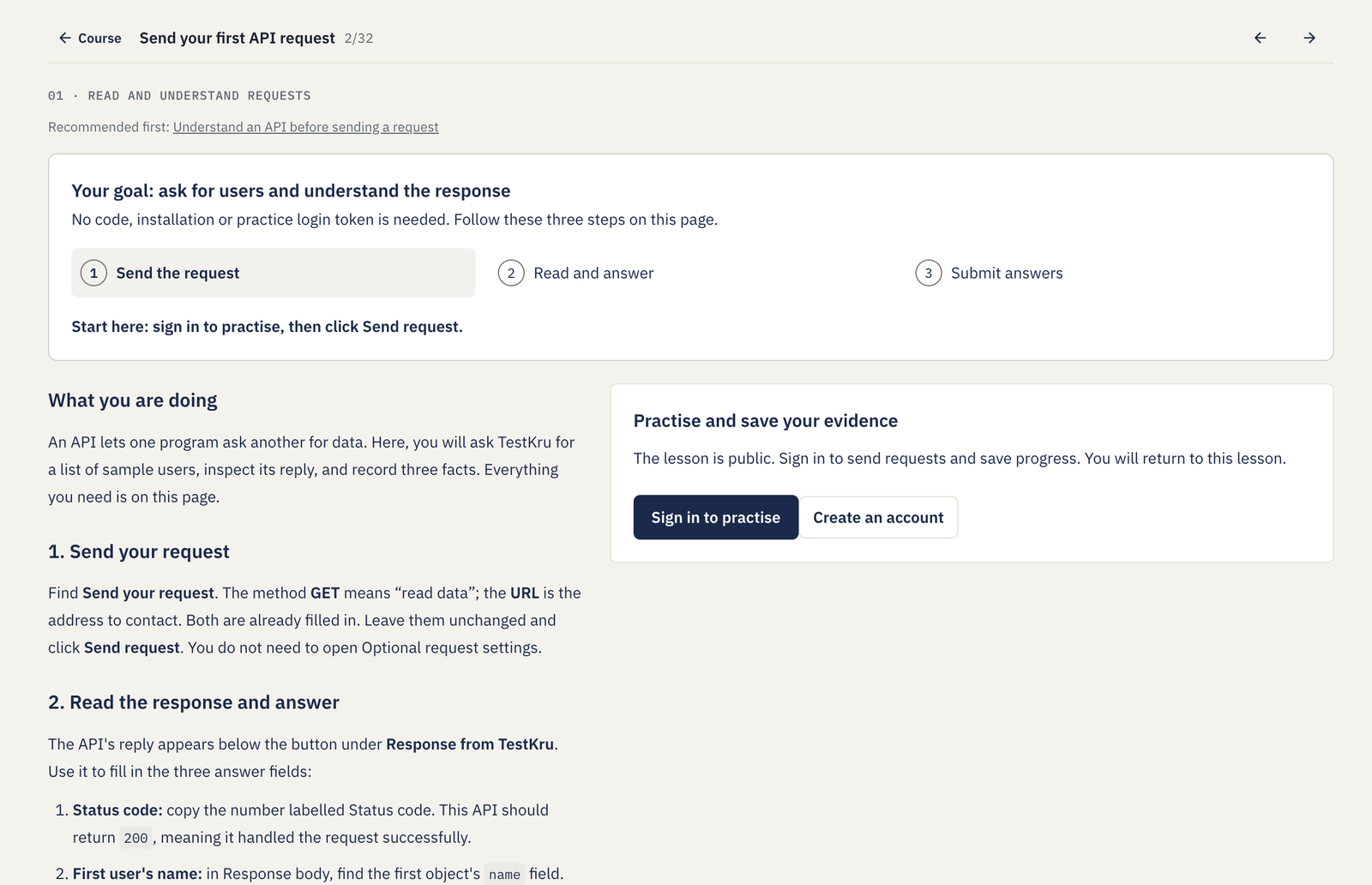
Click Sign in to practise. If you do not have an account yet, click Create an account first. You return to this lesson. This is your CodeKru account. The customer-list request does not ask for a separate TestKru password.
After you sign in, the instructions sit beside the practice area on a wide screen. Find 1. Send your request. Method and Request URL are there. On a smaller screen, scroll past the instructions to reach them.
Send the GET
- Check Method and Request URL. They already say GET and
https://testkru.com/api/users. That asks TestKru for its sample users. Leave both as they are. - Leave Optional request settings closed. You do not add a body or extra headers.
- Click Send request. Wait for Response from TestKru under the button. It shows the status, Content-Type, and the response body.
For this request, expect status 200 and a JSON list. If the status is 429, the assignment says to wait a minute and send it again. 429 means too many requests. For any other status that is not 200, check the method and the address, then send it again. If no API response appears, read the error in the tool and check the address and your connection. Wait until you have a user list before you answer.
Fill in the three answers
Under the response, find 2. Read the response and fill in your answers. The page keeps your first successful GET for checking. A line that says selected for checking marks that request.
If you send the request again, the check still uses the earlier response. To use a later one, open Choose a different recorded request and select it. All three answers must come from the same selected response.
- Status code. Copy the number beside Status code in the response you selected. Use that number, not 200 from this article, if the response shows a different one.
- First user’s name. In Response body, find the first JSON object inside the square brackets. Read its ‘name’ field. Type the name without quotation marks. Amina Cole only shows you where to look. Your name comes from the TestKru response.
- Content-Type (media type). Read Content-Type above the body. Type the format name before the semicolon, and leave out charset. If there is no semicolon, type the whole value.
Submit and fix a check
Click Submit Answers when all three boxes are filled. The result appears under the button, with a score and a result for each check.
If a check says Needs attention, read its note and look again at the selected response. For the name, check that you used the first JSON object and left out the quotation marks. For the media type, check that you left out the semicolon and charset. Change that answer, then submit again.
When every check passes, the result is saved. Use the control under the result to continue to lesson 3.
The optional self-review asks you to explain, in your own words, how the request URL, the status, and the response body are different, and why getting no API response is not the same as a 404. Those answers are not extra boxes to submit.
The next lesson shows you how to read a JSON object, a list, and a name that sits inside another JSON object.