A shop page shows a desk lamp, its category, and whether it is in stock. Suppose you want to check those details against the API’s response. Finding the lamp’s name is a start, but where do you look for the category and stock information?
In the previous lesson, you sent a GET request and read a customer’s name from a list. The request method stays the same here. What changes is the information you read: one item’s details, including details grouped inside other details.
Start with one name and its value
JSON is a format for writing data as text. It gives that text a structure, so a program can tell which piece is a name, which is a price, and which details belong together. You can read that structure too, without writing a program.
Here is a small, invented response body for the lamp:
{
  "name": "Oak desk lamp"
}
Read the middle line as “the name is Oak desk lamp.” On the left, ‘name’ tells you what information this is. On the right, “Oak desk lamp” supplies the information. That right-hand part is the value.
The colon, :, separates the name from its value. JSON puts double quotation marks around field names and text values. The marks around “Oak desk lamp” show where the text begins and ends; they are not part of the lamp’s name.
A named piece of information like this is called a field. If someone asks you to read the ‘name’ field, find “name” and read the value after its colon. Here, the answer is Oak desk lamp.
The opening { and closing } in that example are called braces. They mark the beginning and end of a JSON object, a group of named fields. Our object holds the details of one lamp.
A lamp can have more than a name. Add its price to the same group:
{
  "name": "Oak desk lamp",
  "price": 45
}
There are now two fields inside the braces. ‘name’ tells us what the product is called, and ‘price’ tells us its price. Both belong to the same lamp because they sit in the same JSON object.
The comma after “Oak desk lamp” separates the first field from the next one. There is no comma after 45 because ‘price’ is the last field in this object. Unlike the text, 45 has no quotation marks: it is written as a number. The example does not tell us a currency, so we cannot tell whether this price is in rupees, dollars, or something else.
An object is useful when the details have different names and meanings. To find the price, look for ‘price’; it does not need to be the second field. Changing the order of these two fields would still describe the same lamp.
A JSON array holds a list of items
Sometimes we need several values together. For example, a shop might attach the words lighting and desk to a lamp so customers can find it:
["lighting", "desk"]The opening [ and closing ] are square brackets. They enclose a JSON array, which is an ordered list of values. Each value in the list is an item. Here there are two items: “lighting” is first and “desk” is second. The comma separates them.
Unlike the fields in an object, these items do not each have a field name followed by a colon. Their position tells you which one is first or second. An empty array is written []; its brackets contain no items.
An array can hold JSON objects
The customer list from the previous lesson used the same idea, but each item was a whole JSON object instead of a word. Here is a list with two products:
[
  {
    "name": "Oak desk lamp",
    "price": 45
  },
  {
    "name": "Linen notebook",
    "price": 12
  }
]
Start with the outside square brackets. They tell you that the whole body is a list. Inside them, the first pair of braces groups the lamp’s name and price. The second pair groups the notebook’s name and price. So this array contains two items, each of which is a JSON object.
The comma after the first closing brace separates the two products. The commas inside the braces separate fields belonging to each product. The same punctuation separates things at different levels; the surrounding braces and brackets tell you which group you are reading.
If asked for the first product’s name, enter the first object in the array and read its ‘name’ field: Oak desk lamp. If asked for the second product’s price, enter the second object and read ‘price’: 12.
Even a list with only one item is still an array. Compare these two shapes:
{"name": "Oak desk lamp"}[{"name": "Oak desk lamp"}]The first is one JSON object. The second is an array containing one JSON object, because square brackets surround the braces. In the second, enter the list’s first item before reading its ‘name’ field. Count the items only after identifying the outside structure.
An object can also contain an array
The lamp can keep its list of tags alongside its other details. A tag is a short label used to describe or group an item.
{
  "name": "Oak desk lamp",
  "price": 45,
  "tags": ["lighting", "desk"]
}
The whole example is one JSON object, enclosed by the first and last braces. It has three fields: ‘name’, ‘price’, and ‘tags’. The value of ‘tags’ is an array containing two text values.
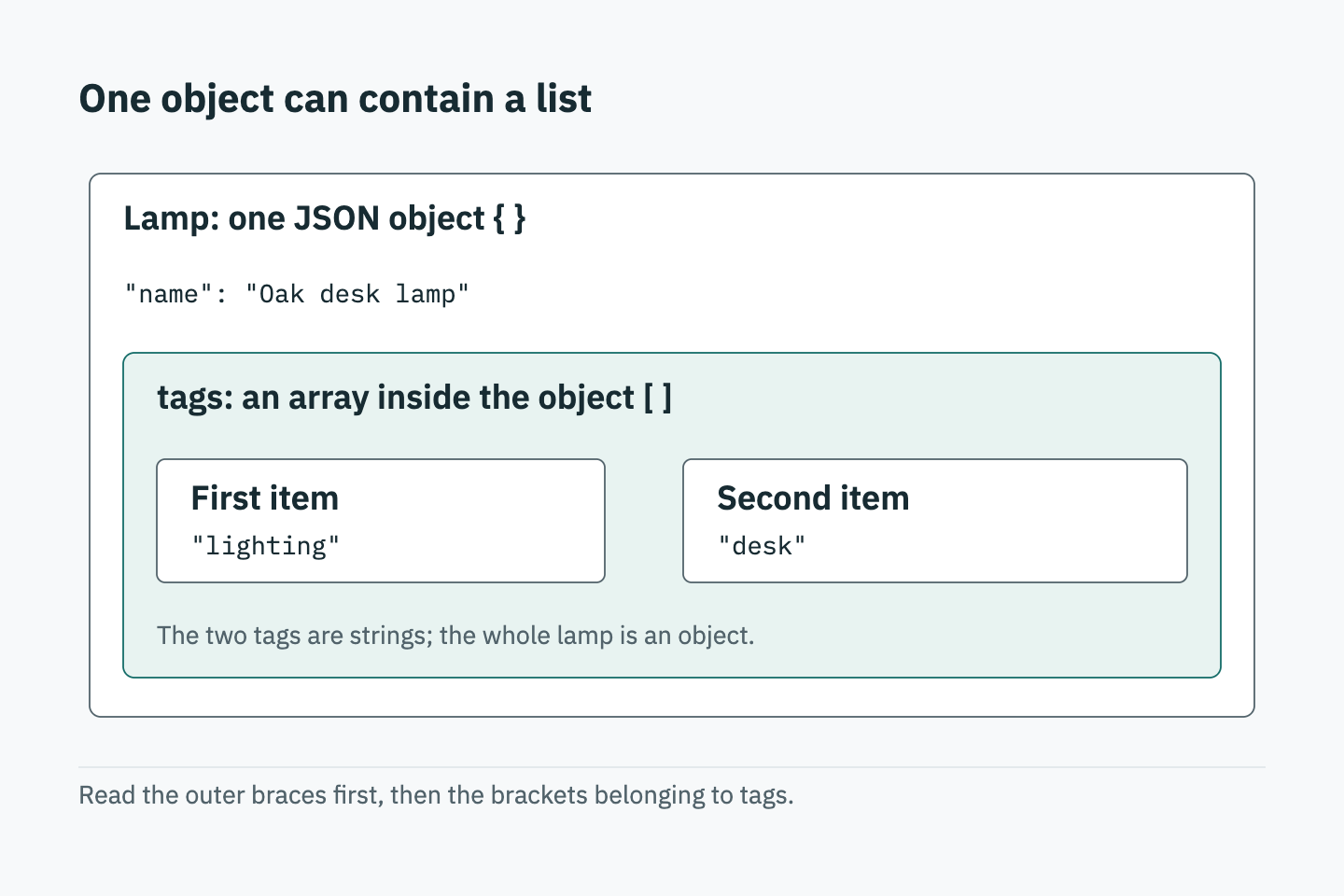
This is different from the two-product array above. Here, we have one product with a list inside it. Above, we had a list of two products. Look at the outside brackets or braces first, then work inward. Finding square brackets somewhere in a response does not make the whole response an array.
Read a field inside another JSON object
A category may need both a name and an identifying number. The shop can keep these together in a smaller JSON object, used as the value of ‘category’:
{
  "name": "Oak desk lamp",
  "price": 45,
  "category": {
    "id": 7,
    "name": "Lighting"
  }
}
The ‘category’ field sits alongside ‘name’ and ‘price’ in the lamp’s object. Its value starts at the brace after “category”: and ends at the matching closing brace below “Lighting”. Inside those braces are two fields: ‘id’, the category’s identifying number, and ‘name’, the category’s name.
Putting one structure inside another is called nesting. Here, the category is a nested JSON object because it sits inside the product’s JSON object.
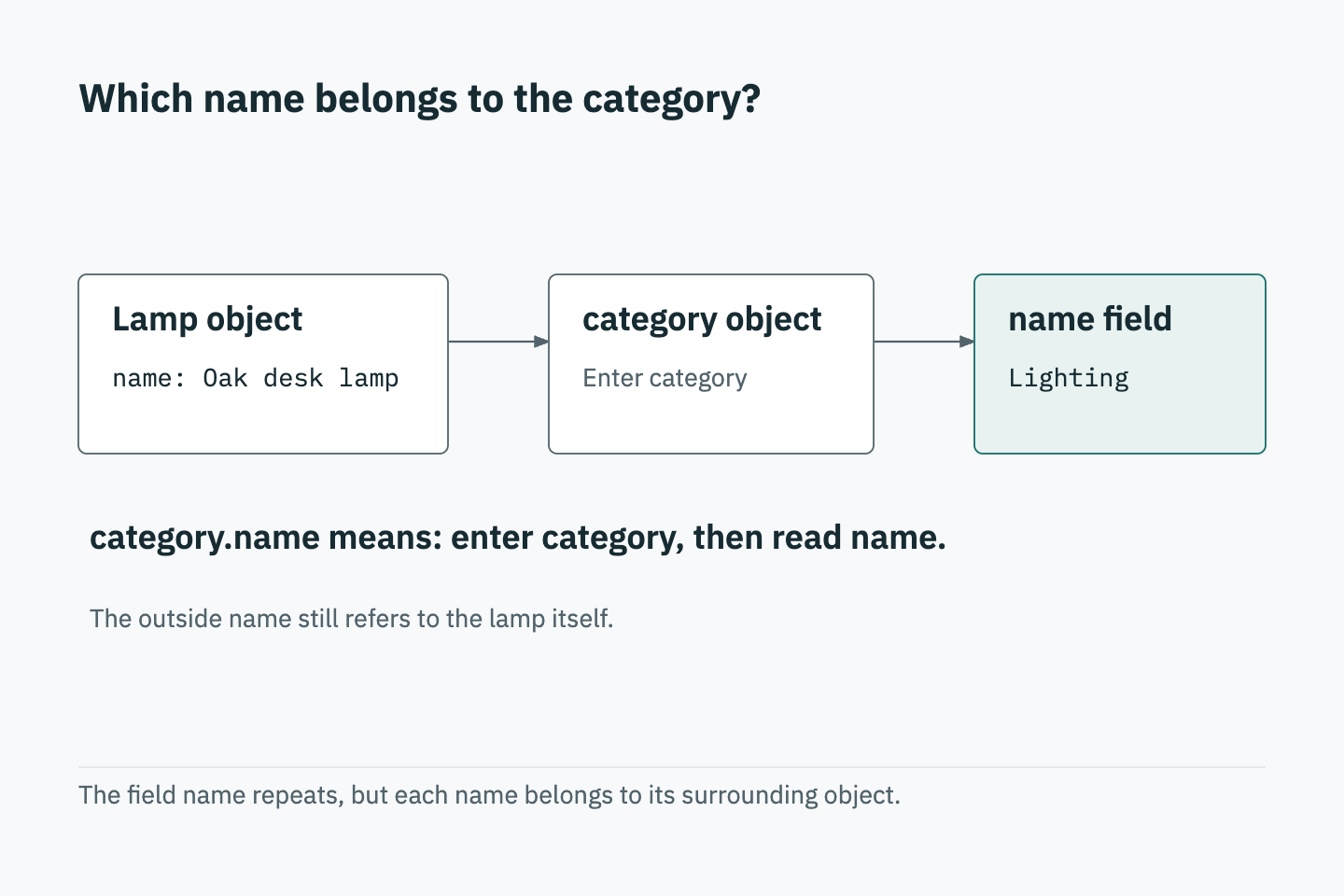
Notice that ‘name’ appears twice. The ‘name’ beside ‘price’ belongs to the product and holds Oak desk lamp. The ‘name’ inside ‘category’ belongs to the category and holds Lighting. To answer “What is the category name?”, first find ‘category’, then read the ‘name’ inside its braces. Going into an object means reading within those braces; it does not require clicking a control.
What does category.name mean?
Instructions often shorten that route to ‘category.name’. This is a path, a way of telling you where to look. The dot means: start at ‘category’, go into its object, and read ‘name’.
In this example, ‘category.name’ leads to Lighting. It is not a field literally named “category.name” in the response. You follow the two names in order.
Stock details can use another nested object. The shop writes true to mean a product is in stock and false to mean it is not. Here is an expanded version of the lamp:
{
  "name": "Oak desk lamp",
  "price": 45,
  "category": {
    "id": 7,
    "name": "Lighting"
  },
  "specs": {
    "weight": "1.2kg",
    "inStock": true
  }
}
‘specs’ is short for specifications: details about the product. Its object groups the weight and stock information. Following ‘specs.inStock’ means finding ‘specs’, staying inside its braces, and reading ‘inStock’. The value here is true, so the lamp is in stock.
Recognize the kind of value you are reading
A value’s type tells you what kind of data it is. Each field’s value has its own type. For example, the lamp’s ‘price’ is a number, while ‘category’ is a JSON object. The values inside ‘category’ have their own types too.
Text is a string; a number has no quotation marks
A string is JSON’s name for text. “Oak desk lamp” and “Lighting” are strings because double quotation marks surround them. “1.2kg” is also a string: the digits and letters are all inside the quotation marks.
Numbers appear without quotation marks. Both 45 and 4.5 are numbers; having a decimal point does not change that. Compare these two small objects:
{"price": 45}{"price": "45"}The first gives ‘price’ a number. The second gives it text containing the digits 4 and 5. They may look similar on a shop page, but the API sent different types. When checking a response, read the quotation marks as well as the characters between them.
true and false are booleans
A boolean is a value with two possible choices: true or false. JSON writes both in lowercase, without quotation marks.
The lamp’s ‘inStock’ field uses a boolean to answer a yes-or-no question: is this product in stock? true means yes. A different product could show:
{
  "name": "Linen notebook",
  "specs": {
    "inStock": false
  }
}
Here, false means the notebook is not in stock. It is a valid answer to the stock question, not a sign that the request failed. The field exists, and the API has supplied its value.
If a question asks for the value of ‘specs.inStock’, the answer for the notebook is false. If it asks for the type, the answer is boolean. The value changes between the lamp and notebook; the type stays the same.
Quotation marks matter here too. "false" would be a string containing the word false. It is different from the boolean false shown above.
Missing, null, and empty mean different things
Suppose the shop can include a short shelf note for a product. Compare these three small responses:
The field is missing:
{"name": "Oak desk lamp"}There is no ‘shelfNote’ field inside this object. We can say that the response did not include that field. We cannot copy a note from it, and the response alone does not explain why the field was left out.
The field is present with null:
{"name": "Oak desk lamp", "shelfNote": null}This time, the field name appears, but its value is null. In JSON, null explicitly represents no value. The API has included a place for the note without supplying note text. Its documentation would need to explain whether that means unknown, not applicable, or something else.
The field is still present. This is why a missing field and a field containing null are different observations. Like booleans, null is lowercase and has no quotation marks. "null" would be a string containing four letters.
The field is present with an empty string:
{"name": "Oak desk lamp", "shelfNote": ""}The two quotation marks have nothing between them. That is an empty string, a string containing no characters. Its type is string; its value is not null.
The same idea applies to groups. "tags": [] means the ‘tags’ field exists and contains a list with no items. "category": {} means the ‘category’ field exists and contains a JSON object with no fields. Neither is a missing field or null.
When checking a field, first look for its name inside the object the question identifies. If it is there, inspect the value. An empty string, an empty array, zero, and false are all values you can observe; none means the field has disappeared.
Line breaks make JSON easier to read
The examples use several lines and extra spaces at the start of nested lines. That spacing helps you see which fields belong together. A tool might show the same data on one line:
{"name":"Oak desk lamp","category":{"name":"Lighting"}}Written with line breaks, it is:
{
  "name": "Oak desk lamp",
  "category": {
    "name": "Lighting"
  }
}
Both have the same fields, values, and nesting. Spaces and line breaks between these JSON parts change the layout, not the data.
Spaces inside quoted text are different. Oak desk lamp has one space between desk and lamp. A value with two spaces between those words would be different text. Copy a name as it appears inside the quotation marks, keeping its spelling, capitalization, punctuation, and spaces.
You can now start at the outside of a response, recognize a JSON object or array, and follow a field into a smaller group. The assignment uses these skills on real responses for a user, a product, and a book.
Solve the assignment using three API responses
Continue practicing: Read objects, lists and nested JSON fields
The assignment uses TestKru, the course’s practice API. The lamp above was invented to explain the structure. TestKru returns different products, which we will read below.
Open the assignment and choose Sign in to practise. If you need an account, use Create an account first. This is your CodeKru sign-in for doing and saving the assignment; these TestKru GET requests do not need a separate API password.
The assignment’s public instructions ask you to send three requests, select each response with Use this response, and then submit four answers. Selecting a response saves the evidence that the answers will be checked against. Keep the user, product, and book responses matched to their own request names.
For each request, use Method GET and the Request URL shown below. GET asks for information at that address. Leave the request body empty and add no extra headers. Send request sends it; the returned data appears in Response body. A request with no body can still receive a response containing data.
The following worked responses were checked on 7 October 2026 and all returned status 200, meaning these GET requests succeeded. Send the requests yourself and use your selected responses if the sample data changes.
Read one user
- Set Method to GET and Request URL to
https://testkru.com/api/users/1. The final 1 identifies the sample user we want. Leave the body empty and click Send request. - Check for status 200, then read the body. The response checked for this lesson was:
{
  "id": 1,
  "name": "John Doe",
  "email": "john@example.com",
  "age": 30,
  "city": "New York"
}
The outside braces enclose one user’s JSON object. ‘id’ is the user’s identifying number; ‘name’, ’email’, ‘age’, and ‘city’ hold that user’s details. The values 1 and 30 are numbers. The name, email address, and city are strings.
Use Use this response to select it for GET /users/1. There is no user-name answer to fill in for this assignment, but selecting this response records that you read this user.
If your whole body starts with square brackets and contains several users, check the URL. /api/users asks for the list from the previous lesson; this task needs /api/users/1.
Read the product’s category and stock value
- Change Request URL to
https://testkru.com/api/products/1, keeping Method as GET and the body empty. Click Send request. - Check the status and read the product body. This was the response:
{
  "id": 1,
  "name": "Laptop Pro",
  "price": 1299.99,
  "category": {
    "id": 1,
    "name": "electronics"
  },
  "specs": {
    "weight": "1.5kg",
    "color": "silver",
    "inStock": true
  }
}
Laptop Pro is the product’s name. To find its category name, go into ‘category’ and read the ‘name’ there: electronics. Copy the lowercase spelling from the response.
Next, follow ‘specs.inStock’. Inside ‘specs’, ‘inStock’ has the value true. There are no quotation marks around it, so its type is boolean. ‘specs’ itself is an object, but the question asks about the value inside it at ‘inStock’.
Finally, look for ‘middleName’ in this product’s object. The fields are ‘id’, ‘name’, ‘price’, ‘category’, and ‘specs’; there is no ‘middleName’ field. The answer is Not present. It is not null, because the response never includes a ‘middleName’ field with that value. Although the name sounds like a person’s detail, the question specifically asks you to inspect the product.
Select this response for GET /products/1 using Use this response.
- Change Request URL to
https://testkru.com/api/books/1, keeping GET and the empty body. Click Send request. - Check the status and read the book body:
{
  "id": 1,
  "title": "The Great Gatsby",
  "author": {
    "name": "F. Scott Fitzgerald",
    "nationality": "American"
  },
  "tags": [
    "fiction",
    "classic",
    "literature"
  ],
  "rating": 4.5
}
The book’s ‘title’ is The Great Gatsby. Its author is described in the smaller ‘author’ object. Follow ‘author.name’ to read F. Scott Fitzgerald, including the period after F. The ‘nationality’ field is another detail about that author, not part of the name.
The ‘tags’ array has three items: fiction, classic, and literature. Each is a string, and their order in this response is the order shown. The ‘rating’ value is the number 4.5. The body as a whole is still one JSON object; only the value of ‘tags’ is an array.
Select this response for GET /books/1 with Use this response. The assignment asks you to notice the tags, but there is no tags answer to submit.
Enter the four answers
Once all three responses are selected, go to Submit answers. For the responses shown above, fill in the fields as follows:
| Answer field | Answer | Where it comes from |
|---|---|---|
| Product category name | electronics | ‘name’ inside the product’s ‘category’ object |
| Book author name | F. Scott Fitzgerald | ‘name’ inside the book’s ‘author’ object |
| Type of specs.inStock | boolean | The product’s ‘inStock’ value is unquoted true |
| Product middleName field | Not present | No ‘middleName’ field appears in the product object |
Type the two names without JSON quotation marks. For the last two fields, choose the matching options. The type answer is boolean, not true.
The presence options need a little care: Not present means the field is absent; null means the field exists with the value null; and Present means it exists with a value other than null. That last label is the assignment’s wording. A field containing null is also present in JSON, but the assignment gives it a separate choice.
Submit and correct any mismatch
Click Submit Answers. The assignment instructions say a saved 100/100 means every check passed, and Continue opens the next lesson.
If a check needs attention, read its note and return to the selected response named there. For a name mismatch, check that you copied the nested name and left out the quotation marks. For the type, check that you selected boolean rather than the value itself. For ‘middleName’, check the product body, not the user body.
If the problem is missing or incorrect evidence, send the required request and select its response with Use this response before submitting again. Keep each answer tied to the response selected for that request.
These requests should return 200. If a request returns a different status, check its method and full URL before trying again. If no response appears, read the tool’s error and check your connection. Do not use a response from a different request just because it contains a similar field.
Solve the product 4 self-review
Under Self-review and independent variation, the assignment asks you to read product 4 and explain why false is still a valid boolean.
Send another GET with an empty body to https://testkru.com/api/products/4. This is an extra reading exercise; keep the three required responses selected for the main assignment.
The response checked for this lesson returned status 200. These are its name and stock details, with the other fields left out here:
{
  "name": "Standing Desk",
  "specs": {
    "weight": "25kg",
    "color": "brown",
    "inStock": false
  }
}
Follow ‘specs.inStock’: the value is false, written without quotation marks. A complete explanation is:
The Standing Desk is not in stock. Its ‘inStock’ field is present and contains the boolean value false. A boolean can be either true or false, so false is a valid value. The GET succeeded with status 200; the stock value describes the product, not whether the request worked.
This exercise has no extra answer box. Use it to check that you can explain the difference between a value, its type, and the request’s status.
The next lesson looks more closely at that status: how an HTTP error response differs from getting no response at all.