Welcome back
In the previous article, you inspected real HTML in Chrome DevTools. You learned to read tags and attributes, check whether an id is unique, and connect one inspected field to driver.findElement(By.id(...)).
That skill answers what the page exposes. This lesson answers the next question: which Selenium locator should you use once you see those clues?
You will meet Selenium’s built-in locator strategies, practice the ones you will use most often (id, name, CSS, XPath, and link text), and learn a simple order of preference so you choose on purpose instead of by habit.
What a locator is
A locator is the instruction you give Selenium for finding one node (or many nodes) in the page’s DOM. In Java, you build that instruction with the By class, then pass it to findElement or findElements.
WebElement lastName = driver.findElement(By.id("lastNameWithPlaceholder"));
Read that line in two parts:
By.id("lastNameWithPlaceholder")describes how to search and what value to match.findElement(...)runs the search and returns the first matchingWebElement.
If nothing matches, Selenium throws NoSuchElementException. If several nodes match, findElement still returns only the first one in document order. That is why uniqueness matters as much as the strategy you pick.
Your Java test
      │
      ▼
By strategy (id, name, CSS, ...)
      │
      ▼
findElement / findElements
      │
      ▼
Browser searches the live DOM
      │
      ▼
WebElement handle (or an error / empty list)
You already used this pattern with By.id. Today you learn the other common By methods and when each one is the right tool.
Selenium’s built-in locator strategies
Selenium documents eight traditional locator strategies. Relative locators (above, below, near, and friends) come later in this module. For now, stay with these eight:
| Strategy | Java method | What it matches |
|---|---|---|
| id | By.id(...) | Element whose id attribute equals the value |
| name | By.name(...) | Element whose name attribute equals the value |
| class name | By.className(...) | Element that includes that single class token |
| tag name | By.tagName(...) | Elements with that HTML tag (input, a, button, …) |
| link text | By.linkText(...) | Anchor (<a>) whose visible text matches exactly |
| partial link text | By.partialLinkText(...) | Anchor whose visible text contains the value |
| css selector | By.cssSelector(...) | Elements matching a CSS selector |
| xpath | By.xpath(...) | Elements matching an XPath expression |
Official locator reference: Selenium locator strategies.
This lesson focuses on id, name, link text, CSS, and XPath, because those five cover almost every beginner page. Class name and tag name are useful, but they are easy to overuse when many elements share the same class or tag. Treat them as supporting tools, not first defaults.
One more distinction before the examples: findElement is for “give me the one control I named.” findElements (plural) returns a list of every match, or an empty list when nothing matches. Beginners usually start with findElement plus a locator that should match exactly once.
Start with id when it is unique
HTML’s id attribute is meant to identify one element on a page. When the id is unique, stable, and human-readable, Selenium’s own guidance says prefer it. Ids tend to resolve quickly and avoid complicated tree walks. See Tips on working with locators.
On https://testkru.com/Elements/TextFields, field 2 looks like this:
<input type="text" name="lastName" id="lastNameWithPlaceholder"
       class="pt-1 pb-1 pr-2 pl-2 lastNameWithPlaceholder"
       placeholder="Enter your last name...">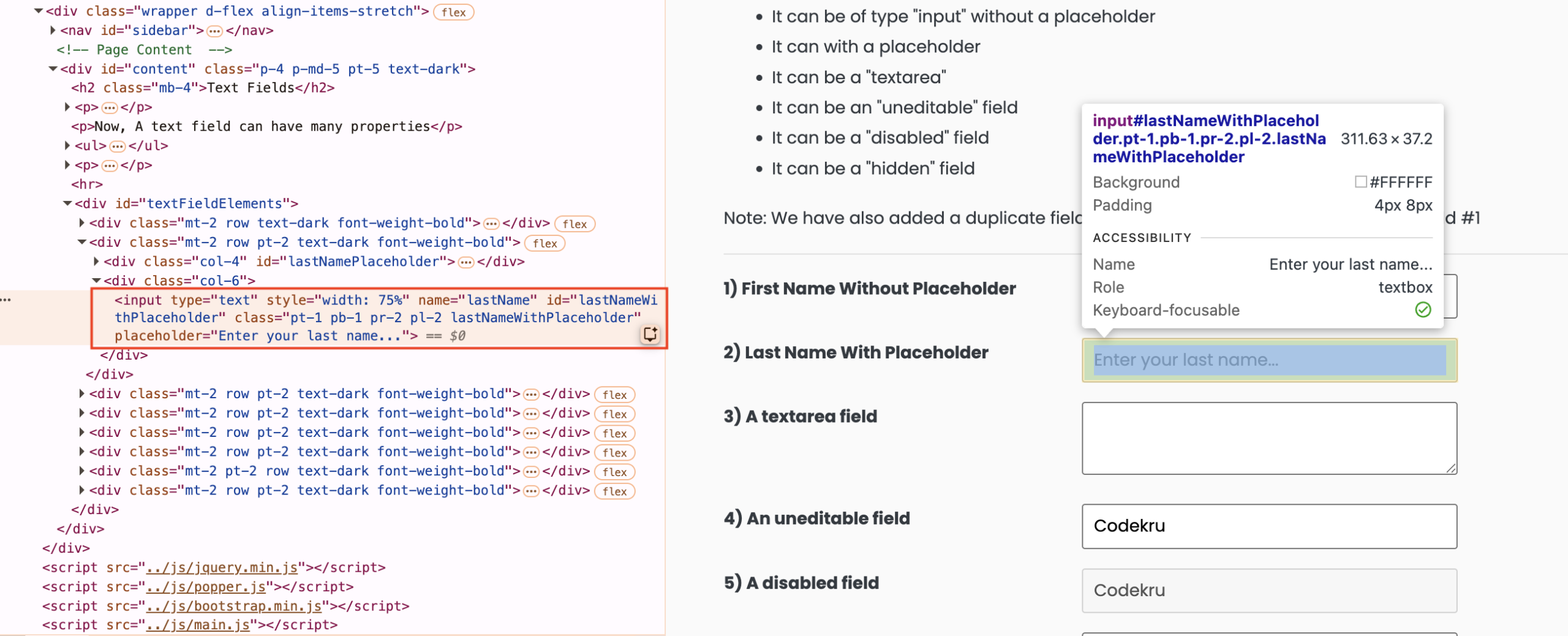
A clear locator is:
driver.findElement(By.id("lastNameWithPlaceholder"));
When id is the wrong first choice
Skip By.id (or use it carefully) when:
- The id is missing. Many modern components never expose a stable id.
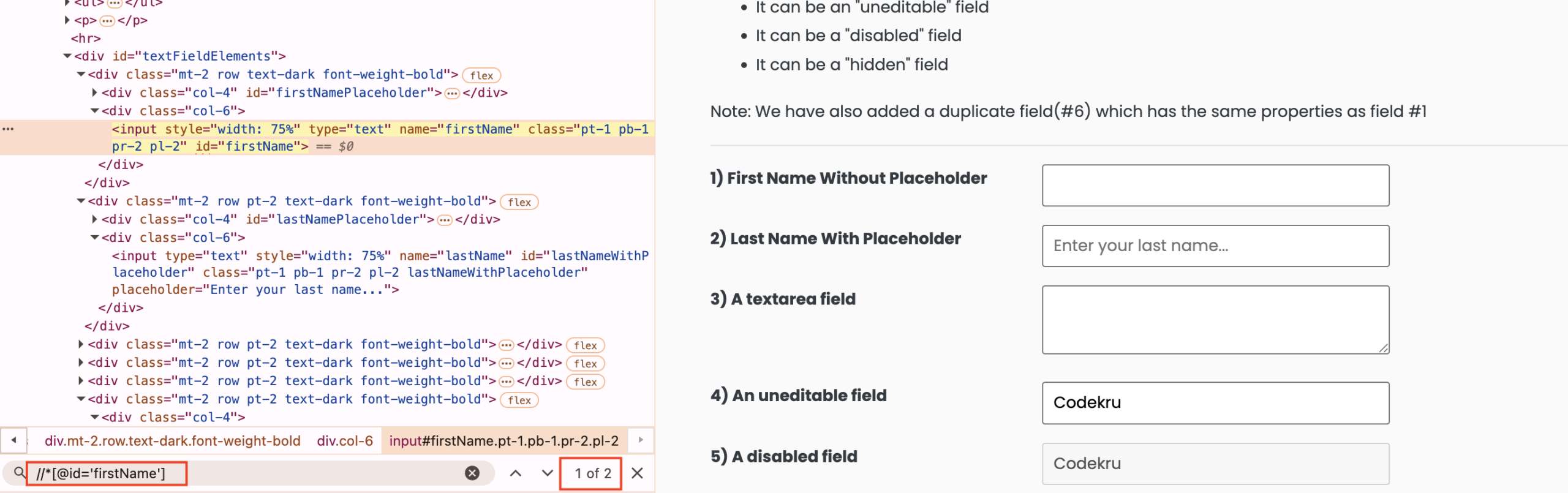
- The id is duplicated. On the same Text Fields page, fields 1 and 6 both use
id="firstName".By.id("firstName")always returns the first field, never “the second first-name box.” - The id looks auto-generated. Values such as
mat-input-17or long random strings often change between builds. Prefer another attribute or a CSS/XPath strategy anchored on something stable.
If DevTools search (Ctrl+F / Cmd+F) shows more than one match for an id, do not treat that id as a safe unique key.
Use name for form controls
The name attribute is common on inputs, textareas, and selects because browsers use it when forms are submitted. When a unique id is missing, By.name(...) is often the next simple option for forms.
For the last name field above:
driver.findElement(By.name("lastName"));
On this playground page, name="lastName" appears once, so the locator is safe. That is not always true on real apps. Login pages sometimes reuse names, or hide duplicate fields for mobile and desktop layouts. Always confirm uniqueness the same way you did for id.
Use name when:
- You are automating a form control.
- The name is stable and unique on the page.
- Id is missing, duplicated, or generated.
Do not use name for links, headings, or layout divs. Those elements usually have no meaningful name.
Locate links with link text
Link text locators work only on anchor elements (<a>). They match the visible text of the link, not an attribute.
Open https://testkru.com/Elements/Links. One practice link is:
<a id="simpleLink" href="/">Go to Homepage</a>Exact link text
driver.findElement(By.linkText("Go to Homepage"));
The text must match exactly, including capitalization and spacing. Extra spaces or a slightly different label will make the search fail.
Partial link text
driver.findElement(By.partialLinkText("Homepage"));
Partial matching is handy when the full label is long, or when a shared word uniquely identifies the link you want. On the Links page, several practice links start with Practice, so By.partialLinkText("Practice") is too broad. Prefer a distinctive fragment, or use exact link text when the full string is short and stable.
Selenium notes drawbacks for link-text strategies: they only work on links, and they are not as general as CSS or XPath. Prefer id or CSS when the same control can be found that way. Keep link text for genuine navigation links where the visible label is the clearest identifier.
Reach for CSS when id is missing
A CSS selector is a pattern the browser already understands for styling pages. Selenium can reuse that same language to find elements.
Two beginner-friendly shapes:
// Same idea as By.id, written as a CSS id selector
driver.findElement(By.cssSelector("#lastNameWithPlaceholder"));

// Attribute selector when you want the name without By.name
driver.findElement(By.cssSelector("input[name='lastName']"));
Why CSS matters even when By.id and By.name exist:
- Official Selenium guidance prefers a well-written CSS selector when unique ids are unavailable.
- CSS can combine tag, id, class, and attributes in one compact expression.
- Later lessons will teach descendant selectors, so you can scope a search inside a form or section.
Notice that #lastNameWithPlaceholder is the CSS way of saying “the element with this id.” Functionally it overlaps By.id. That overlap is normal. Teams often standardize on CSS for consistency once selectors get more complex. For a single unique id, By.id stays the clearest beginner choice.
You do not need every CSS trick today. Treat By.cssSelector as the flexible everyday tool after id. The next lesson, CSS Selectors: The Practical Guide, goes deep on syntax. For this lesson, remember the rule of thumb: if you cannot use a unique id, a clear CSS selector is usually the next best default.
Reach for XPath when the tree relationship matters
XPath is a query language for navigating XML-like trees. HTML pages can be searched with XPath too.
A relative XPath for the same last name field:
driver.findElement(By.xpath("//input[@id='lastNameWithPlaceholder']"));
That works, but it is not better than By.id here. Prefer XPath when you need something CSS cannot express cleanly for beginners, such as:
- Walking up to a parent or ancestor.
- Finding a control by nearby text that is not link text.
- Complex sibling relationships.
Avoid absolute XPath strings that start at /html/body/... and list every step. They break as soon as the layout changes. Prefer short relative expressions that start with // and anchor on a stable attribute.
Selenium’s encouraged practice notes that XPath is flexible, yet often harder to debug and typically slower than CSS because browser vendors invest more optimization in CSS engines. Use XPath when you need its power, not as the default for every field. Module 2 later includes a full XPath lesson for functions, axes, and dynamic elements.
A simple decision guide
Selenium’s encouraged practice is clear: prefer a unique, stable id when you have one. If you do not, prefer a well-written CSS selector before reaching for complex XPath. See Tips on working with locators.
For beginners, that guidance maps to everyday choices like this:
1. Unique, stable id?
      -> By.id("...")

2. No good id, but a clear CSS selector exists?
      -> By.cssSelector("...")
      Tip: By.name("email") is a friendly shortcut for
           the common case css = [name='email'] on forms.

3. Need parent/ancestor travel, text, or awkward relationships?
      -> By.xpath("...")

4. The control is an <a> identified best by visible label?
      -> By.linkText(...) or By.partialLinkText(...)
So where does By.name sit? It is still worth learning as its own method because form fields expose name constantly, and the Java call reads cleanly. Mentally treat it as a short path to the same idea as By.cssSelector("[name='...']"), not as something that outranks CSS in Selenium’s official preference list.
Keep the expression short and readable. The more of the DOM Selenium must walk, the more expensive and fragile the search becomes. Official advice is the same: keep locators compact, and narrow the search whenever you can.
Here is the same idea as a comparison table for the five strategies in this lesson’s title:
| Strategy | Best when | Watch out for |
|---|---|---|
| id | Unique, stable id exists | Duplicates and generated ids |
| name | Unique form name exists and you want a short API | Missing or shared names |
| CSS | Unique id unavailable; attributes, classes, or combinations | Over-long selectors tied to layout |
| XPath | Need upward travel, text, or complex relationships | Absolute paths; hard-to-read expressions |
| Link text | Visible link label is unique and stable | Only works on <a>; text changes break it |
Class name and tag name still fit the table mentally: they are fast to type, but often match too many nodes. Prefer them inside findElements when you intentionally want a list, or after you have narrowed the search another way.
Put the strategies into one runnable test
This example stays in your existing Maven TestNG project from earlier modules. It opens TestKru, finds a text field three ways (id, name, CSS), then finds a link by exact link text. The assertions prove each locator landed on the control you meant.
Where to save the class
Create the file under src/test/java/com/codekru/tests/ as LocatorStrategiesIntroTest.java (adjust the package if your project uses a different one).
The complete example
package com.codekru.tests;

import org.openqa.selenium.By;
import org.openqa.selenium.WebDriver;
import org.openqa.selenium.WebElement;
import org.openqa.selenium.chrome.ChromeDriver;
import org.testng.Assert;
import org.testng.annotations.AfterMethod;
import org.testng.annotations.BeforeMethod;
import org.testng.annotations.Test;

public class LocatorStrategiesIntroTest {

    private WebDriver driver;

    @BeforeMethod
    public void setUp() {
        driver = new ChromeDriver();
    }

    @Test
    public void shouldFindControlsWithCommonLocatorStrategies() {
        driver.get("https://testkru.com/Elements/TextFields");

        WebElement byId = driver.findElement(By.id("lastNameWithPlaceholder"));
        byId.clear();
        byId.sendKeys("codekru");
        Assert.assertEquals(byId.getAttribute("value"), "codekru");

        WebElement byName = driver.findElement(By.name("lastName"));
        Assert.assertEquals(byName.getAttribute("id"), "lastNameWithPlaceholder");

        WebElement byCss = driver.findElement(By.cssSelector("input[name='lastName']"));
        Assert.assertEquals(byCss.getAttribute("placeholder"), "Enter your last name...");

        driver.get("https://testkru.com/Elements/Links");

        WebElement homeLink = driver.findElement(By.linkText("Go to Homepage"));
        Assert.assertEquals(homeLink.getAttribute("id"), "simpleLink");
        Assert.assertTrue(homeLink.getAttribute("href").endsWith("/"));
    }

    @AfterMethod
    public void tearDown() {
        if (driver != null) {
            driver.quit();
        }
    }
}
What each part does:
@BeforeMethodopens a fresh Chrome session for the test.- The test loads Text Fields and finds the last name input with
By.id, typescodekru, and checks the value. - The same field is found again with
By.name("lastName"). The assertion checks that this name belongs to the id you already trust. By.cssSelector("input[name='lastName']")shows the CSS form of an attribute search. The placeholder assertion confirms you still have field 2.- The test then opens Links and uses
By.linkText("Go to Homepage"). Checkingid="simpleLink"proves the visible text mapped to the intended anchor. @AfterMethodcallsquit()so the browser does not stay open after success or failure.
You could also write By.xpath("//input[@id='lastNameWithPlaceholder']") for the same field. This example skips that on purpose: when id already works, XPath adds no teaching value yet.
How to run it and what to expect
- Save the class in your test package.
- Run
shouldFindControlsWithCommonLocatorStrategiesfrom IntelliJ or your usual TestNG/Maven command. - Chrome should open Text Fields, type into the last name box, move to Links, pass the assertions, and close.
If By.name("lastName") fails, re-inspect field 2 and confirm the live name attribute. If link text fails, confirm the Links page label is still exactly Go to Homepage with the same capitalization.
Common beginner mistakes
- Copying the first attribute you see. Shared classes such as layout utilities (
pt-1,pl-2) are poor unique locators. Prefer id or name when they are unique. - Trusting a duplicated id. TestKru’s two
firstNamefields are a deliberate trap. Always search the Elements panel for uniqueness. - Using
By.classNamewith multiple classes.By.classNameaccepts one class token only. For several classes, useBy.cssSelector(".a.b")instead. - Defaulting to absolute XPath. Long
/html/body/div[3]/...paths look precise and fail early. Prefer id, name, or a short relative CSS/XPath expression. - Using link text on non-links. Buttons styled to look like links are often
<button>or<div>, so link text will not find them. - Ignoring that
findElementreturns the first match. If your locator is broad, Selenium will happily automate the wrong control and your later assertions will look “mysterious.”
Practice assignment
Lock in the habit of choosing a locator from inspected HTML, not from memory.
Your task:
- Open the assignment page linked below.
- Inspect the target control in the browser and find its
nameattribute. - Write a Selenium Java test that locates that control with
By.name(...). - Assert one fact that proves you found the right element (for example an
id, placeholder, or typed value). - Do not look up a finished solution.
Continue practicing: Find Element by Name
If you want extra practice with anchors after this lesson, try Find Element by Link Text next. Browse the full set anytime in the Selenium learning catalog.
What is next
You can now choose among Selenium’s core locator strategies with a clear order: unique id first, then CSS as the flexible default (with By.name as a handy form shortcut), then XPath when relationships demand it, and link text for anchors identified by visible labels.
Next up is CSS Selectors: The Practical Guide. You will learn the selector patterns you will reuse every day: ids, classes, attributes, descendants, and combinations that stay readable as pages grow.
Summary
- A locator is a
Byinstruction;findElementreturns the first match or throws if none exist. - Selenium provides eight traditional strategies; this lesson focuses on id, name, CSS, XPath, and link text.
- Prefer a unique, stable id when the page gives you one.
- Use
By.nameas a clear shortcut for unique formnameattributes; the same idea can be written as CSS[name='...']. - Prefer a clear CSS selector when unique ids are unavailable; save XPath for relationships and text cases CSS handles poorly.
- Use link text and partial link text only for
<a>elements with stable visible labels. - Keep locators short, verify uniqueness in DevTools, and avoid absolute XPath and compound
classNamemistakes.