Welcome back
In the previous article, you learned browser-level commands: open a URL, read the title, move through history, resize the window, and work with tabs. Those commands talk to the browser as a whole. They never need a locator, because they are not looking for one field or button.
Almost every real test still has to touch the page itself. To click Login, type into Email, or read an error message, Selenium must find that control first. Finding starts before Java. It starts in the browser, where you inspect the page’s HTML and write down the clues Selenium will use.
This lesson teaches that inspection skill. You will open Chrome DevTools, inspect a real field on TestKru, read the attributes that matter, check whether they are unique, and connect what you see to a small Selenium findElement call. Module 2 then turns those clues into a full locator strategy.
Why inspection comes before locators
Selenium cannot “see” a screen the way you do. It asks the browser for nodes in the page’s document tree (the DOM). Your job is to tell Selenium which node you mean, using a locator such as By.id("lastNameWithPlaceholder").
That locator is only as good as the HTML behind it. If you guess an id from a label on the screen, the test may fail with NoSuchElementException. If you copy an id that appears twice, Selenium may grab the wrong field. Inspection removes the guesswork: you look at the real markup, then write the locator from facts.
Think of the page as a labeled map. The visible input is what you care about. The HTML attributes are the street names and house numbers. DevTools is how you read the map before you give directions to Selenium.
Before you open DevTools, it helps to know the two pieces of information you will read most often.
A tag is the element’s type in HTML. Common ones for beginners are input, button, a (link), select, textarea, and div. The tag tells you what kind of control you are dealing with.
An attribute is a name/value pair written inside the opening tag. Selenium locators usually key off attributes such as id, name, and class, or off the visible link text for anchors. Here is a simplified shape of a text field:
<input type="text" id="lastNameWithPlaceholder" name="lastName"
       class="pt-1 pb-1 pr-2 pl-2 lastNameWithPlaceholder"
placeholder="Enter your last name...">| Piece | Example | Why it matters for Selenium |
|---|---|---|
| Tag | input | Tells you the kind of control |
id | lastNameWithPlaceholder | Often the most stable beginner locator when it is unique |
name | lastName | Common on forms; useful when id is missing |
class | several values separated by spaces | Can help, but shared classes are often too broad alone |
type | text | Distinguishes text, password, submit, and similar inputs |
placeholder | Enter your last name... | Helps you confirm you inspected the right field; rarely a first-choice locator |
You do not need to memorize every HTML attribute today. You need a habit: inspect the control, read its tag and attributes, then choose a locator that points at that one node.
HTML file vs the live DOM
The .html file a server sends is the starting recipe. The DOM is the live tree the browser builds from that recipe, then updates when JavaScript runs. DevTools Elements shows the live DOM, which is what Selenium searches too.
On a simple static playground like TestKru Text Fields, the recipe and the live tree look almost the same. On modern apps, buttons and fields may appear only after scripts run, so the Elements panel (and your test) can see nodes that were not obvious in the original file view. That is another reason to inspect the page in the state your test will use: after the URL has loaded and the screen shows the control you care about.
Open the practice page
Use the same TestKru playground you already know from Lessons 1 and 2.
- Open Google Chrome.
- Go to https://testkru.com/Elements/TextFields.
- Confirm the page title in the browser tab is
Text Fields.
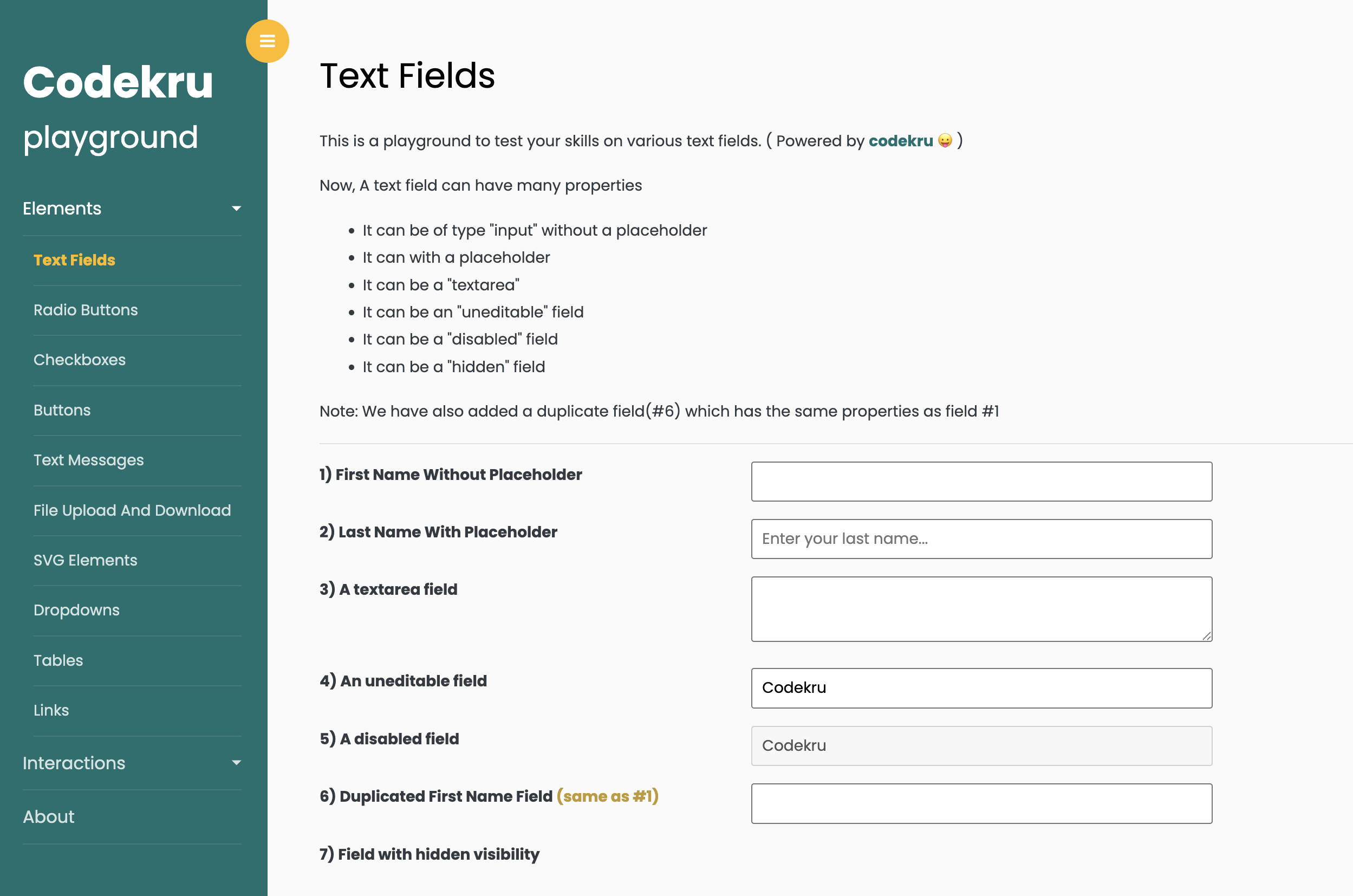
The page also notes that field 6 duplicates field 1. That duplicate is intentional practice for uniqueness, and you will use it later in this lesson.
Inspect a field with Chrome DevTools
Chrome’s developer tools (DevTools) are built into the browser. For this lesson you only need the Elements panel, which shows the live DOM tree.
Open DevTools on the last name field
- On the Text Fields page, find 2) Last Name With Placeholder.
- Right-click inside that input.
- Choose Inspect (wording may say Inspect or Inspect Element, depending on Chrome’s version).
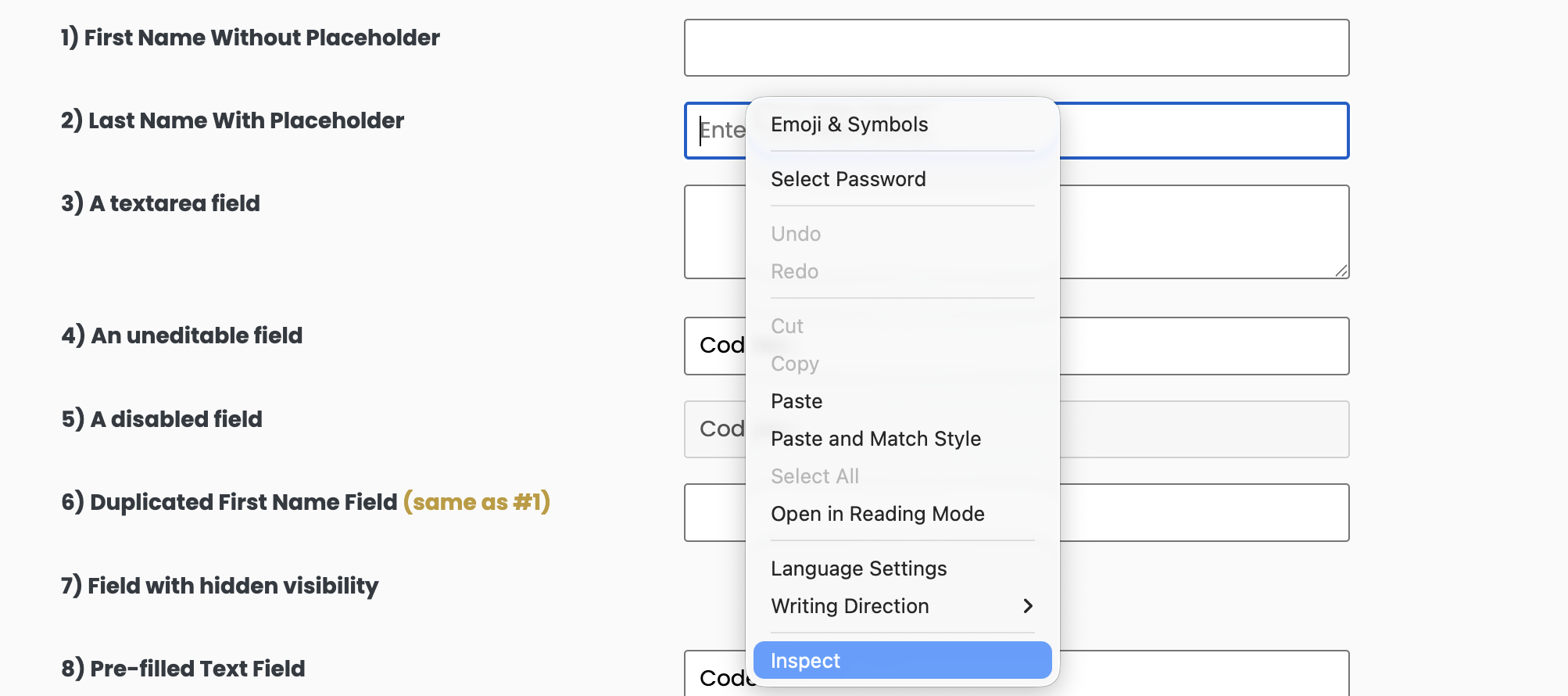
Chrome opens DevTools and highlights the matching node in the Elements panel. You can also open DevTools with Ctrl+Shift+I on Windows/Linux or Cmd+Option+I on macOS, then click the element-picker icon (or press Ctrl+Shift+C / Cmd+Shift+C) and click the field on the page.
Official Chrome documentation describes the same flow: right-click a node, choose Inspect, and the Elements panel highlights that node in the DOM tree. See Viewing and changing the DOM.
When Chrome’s inspect overlay sits on the field, it often shows a compact summary such as the tag, id, classes, and size. That overlay is a quick confirmation that you landed on the right control before you dig into the full HTML line.
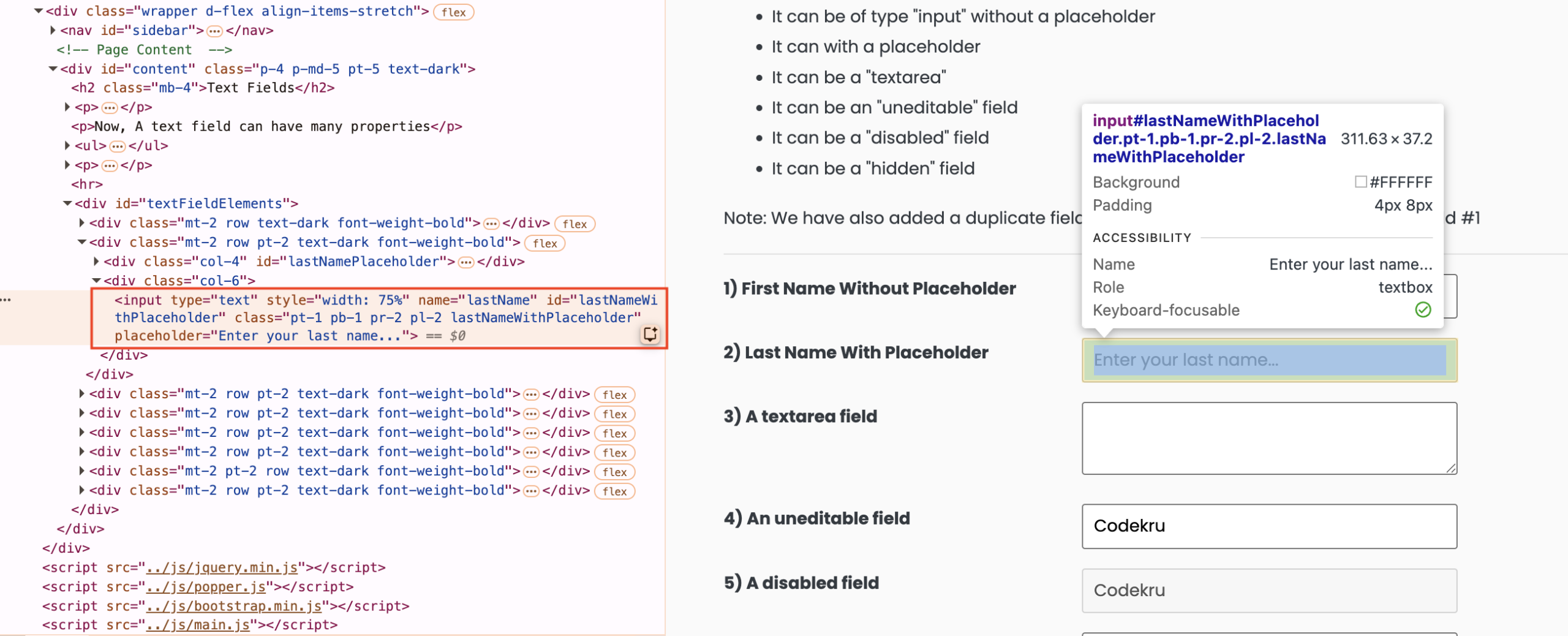
Read the highlighted HTML line
In the Elements panel, the highlighted line should look like this (spacing may wrap, but the attributes match the live page):
<input type="text" style="width: 75%" name="lastName"
       id="lastNameWithPlaceholder"
       class="pt-1 pb-1 pr-2 pl-2 lastNameWithPlaceholder"
       placeholder="Enter your last name...">
Read it left to right:
- The tag is
input. name="lastName"is the form name.id="lastNameWithPlaceholder"is a unique id on this page.classholds several values; some are layout helpers (pt-1,pl-2), and one repeats the field’s purpose (lastNameWithPlaceholder).placeholder="Enter your last name..."matches the grey hint text you see in the box.
Those five facts are exactly what you need to write a first locator. For this field, id is the clearest choice.
Inspect one more field for contrast
Still on the same page, right-click the greyed-out box labeled 5) A disabled field and choose Inspect again. You should see something like:
<input type="text" name="disabledField" id="disabledField"
       class="pt-1 pb-1 pr-2 pl-2" value="Codekru" disabled="">
Compare it with the last name field. Both are input tags, but this one carries disabled and a pre-filled value="Codekru". The identity attributes (id, name) still tell Selenium which node it is. The state attribute (disabled) tells you the control will not behave like a normal editable box. Inspection is how you notice that difference before your test tries to type into it.
Attributes that matter most for beginners
After a few inspections, you will start scanning for a short priority list. Use this order while you are still new:
id, if it exists and is unique on the page.name, especially on form controls, if it is unique enough.- Link text for
<a>tags (Module 2 covers this in detail). - CSS or XPath when id and name are missing, duplicated, or unstable.
Classes are useful clues, but many pages reuse the same class on dozens of elements. On TestKru’s last name field, classes such as pt-1 and pl-2 are spacing helpers shared with other inputs, so they are poor locators by themselves. Prefer id here.
Also notice attributes that describe state rather than identity:
| Attribute | Example on Text Fields | What it tells you |
|---|---|---|
placeholder | Enter your last name... | Helps confirm you inspected the right box |
readonly | present on the uneditable field | The field shows a value but rejects typing |
disabled | present on the disabled field | The field is not interactive |
value | Codekru on the pre-filled field | The current text stored in the input |
You will practice clicking and typing in Module 3. For now, those state attributes simply help you recognize that not every input behaves the same way, even when they look similar on screen.
Check whether a locator clue is unique
A locator must point at the element you intend. If two nodes share the same id or name, a simple findElement call returns only the first match in the DOM, which may not be the one you wanted.
TestKru builds that lesson into the Text Fields page. Field 1 and field 6 both use id="firstName" and name="firstName" on purpose. The page even labels field 6 as a duplicate of field 1.
Search inside the Elements panel
Chrome’s Elements panel can search the DOM by plain text, CSS selector, or XPath. Official DevTools docs confirm that search supports those three kinds of queries.
- Click inside the Elements panel so it has focus.
- Press
Ctrl+F(Windows/Linux) orCmd+F(macOS). - Type
#firstName(a CSS id selector) or the plain textfirstName. - Read the match count Chrome shows (for example,
1 of 2).
Two matches for firstName means the id is duplicated. A beginner locator such as By.id("firstName") would always return the first field on the page, never “the second first-name box.” Module 2 teaches safer strategies for duplicates. Today, the takeaway is simpler: always verify uniqueness before you trust an attribute.
By contrast, search for #lastNameWithPlaceholder. You should see a single match. That is why this lesson’s code example uses that id.
From inspected HTML to findElement
Inspection is useful only if it connects back to Java. You already used this bridge in Lesson 1. Here is the same idea with the attributes you just read.
WebElement lastName = driver.findElement(By.id("lastNameWithPlaceholder"));
lastName.sendKeys("codekru");
By.id("lastNameWithPlaceholder") is the locator. It must match the id value from the Elements panel exactly, including capital letters. findElement asks the current page for the first matching node and returns a WebElement. sendKeys("codekru") types into that field.
The flow never changes:
Open page (driver.get)
        │
        ▼
Inspect HTML in DevTools
        │
        ▼
Choose a unique attribute
        │
        ▼
driver.findElement(By...)
        │
        ▼
Act on the WebElement
If findElement fails, reopen DevTools and re-check three things: Did you load the correct URL? Does the attribute still exist? Is the value spelled exactly as in the HTML?
Common inspection mistakes
These mistakes show up constantly in first projects. Catching them in DevTools is faster than debugging Java.
| Mistake | What goes wrong | What to do instead |
|---|---|---|
| Guessing from the visible label | The label text is often not the id or name | Inspect the input itself, not only the label beside it |
| Copying a long auto-generated absolute XPath from a tool | The path breaks when the page layout changes | Prefer a short unique id or name when one exists |
| Ignoring duplicate matches | Selenium returns the first match, which may be the wrong control | Use Elements search and confirm 1 of 1 |
| Inspecting after the page changed | You may read attributes from an old or different view | Navigate to the exact URL your test will open, then inspect |
| Treating shared classes as unique | findElement may hit an unrelated element | Prefer id, or learn CSS/XPath scoping in Module 2 |
One more habit helps: inspect on the same browser family your test will drive when you can. Attribute values are usually the same across Chrome and Edge for a simple page like TestKru, but layout and dynamic widgets can differ on real apps.
Put it together: inspect, then find
Use the Maven project from earlier lessons (selenium-java-academy, with Selenium 4 and TestNG already on the classpath). Create this class under src/test/java/com/codekru/tests/:
package com.codekru.tests;

import org.openqa.selenium.By;
import org.openqa.selenium.WebDriver;
import org.openqa.selenium.WebElement;
import org.openqa.selenium.chrome.ChromeDriver;
import org.testng.Assert;
import org.testng.annotations.AfterMethod;
import org.testng.annotations.BeforeMethod;
import org.testng.annotations.Test;

public class InspectThenFindTest {

    private WebDriver driver;

    @BeforeMethod
    public void setUp() {
        driver = new ChromeDriver();
        driver.manage().window().maximize();
    }

    @Test
    public void shouldFindLastNameFieldUsingInspectedId() {
        driver.get("https://testkru.com/Elements/TextFields");

        Assert.assertEquals(driver.getTitle(), "Text Fields");

        WebElement lastName = driver.findElement(By.id("lastNameWithPlaceholder"));
        lastName.clear();
        lastName.sendKeys("codekru");

        Assert.assertEquals(lastName.getAttribute("value"), "codekru");
        Assert.assertEquals(lastName.getAttribute("placeholder"), "Enter your last name...");
    }

    @AfterMethod
    public void tearDown() {
        if (driver != null) {
            driver.quit();
        }
    }
}
What each part is doing
setUpcreates a Chrome session and maximizes the window, matching the lifecycle from Lessons 1 and 2.driver.get(...)opens the exact Text Fields URL you inspected.Assert.assertEquals(driver.getTitle(), "Text Fields")confirms you landed on the right page before searching for elements.By.id("lastNameWithPlaceholder")uses the id you copied from DevTools.clear()andsendKeys("codekru")prepare the field and type the sample text.getAttribute("value")reads the typed text back from the input.getAttribute("placeholder")double-checks that the WebElement is still the same control you inspected (same placeholder string).tearDowncallsquit()so the session does not stay open after the test.
How to run it and what to expect
- Save the class in your existing test package.
- Run
shouldFindLastNameFieldUsingInspectedIdfrom IntelliJ or with Maven/testng. - Chrome should open, load Text Fields, type
codekruinto the last name box, pass both assertions, and close.
If the test fails on findElement, open https://testkru.com/Elements/TextFields manually, inspect field 2 again, and confirm the id has not changed. If it fails on the placeholder assertion, you likely found a different input.
Practice assignment
Before Module 2, lock in the inspect-then-locate habit with a short catalog exercise.
Your task:
- Open the assignment page linked below.
- Inspect the target control in the browser until you find a unique
id. - Write a Selenium Java test that finds that element with
By.id(...). - Do not look up a finished solution; use DevTools as your source of truth.
Continue practicing: Find Element by ID
Browse more exercises anytime in the Selenium learning catalog.
What is next
You can now inspect a page and turn a unique id into a working findElement call. That is the foundation every locator strategy builds on.
Next up is Selenium Locators: Choosing ID, Name, CSS, XPath, and Link Text. You will compare Selenium’s built-in locator types, learn when each one fits, and practice choosing stable selectors on purpose instead of by habit.
Summary
- Selenium finds page controls through the DOM, so you inspect HTML before you write locators.
- Tags name the control type; attributes such as
idandnameare the usual beginner clues. - Chrome DevTools Elements panel is the everyday tool: right-click, Inspect, read the highlighted line.
- Always check uniqueness with Elements search; duplicates such as TestKru’s two
firstNamefields will mislead a simpleBy.id. - Prefer a unique
idwhen one exists, then connect it withdriver.findElement(By.id(...)). - Re-inspect on the exact URL your test opens whenever a locator suddenly stops working.
- Elements shows the live DOM (what Selenium searches), not only the original HTML file.