Welcome back
In the previous article, you worked with parts of a page that change while it keeps running: a suggestion list that appears after typing, a table with many rows, a paginated orders table, and a field that stays hidden until a button reveals it. Every one of those demos updated instantly, so your test never had to wait for anything.
Real pages are not always that fast. A page can take a moment to show a message, load a table, or swap one set of rows for another. When that gap between “the browser is still working” and “your test already moved on” shows up, tests start failing in confusing ways. The same test can pass once and fail the next time, with no code changes in between.
This lesson explains why that happens. You will see two separate problems that both come from timing: a delayed message that Selenium can find before it is visible, and a table row that becomes unusable the moment the page redraws it. Neither problem needs a new Selenium class. You already know findElement(), isDisplayed(), and getText(). This lesson teaches you to recognize when those familiar methods are telling you that the page has not finished changing yet.
Why a passing test can fail the next run
driver.get() sends a request, WebDriver returns control to your test, and your next line of Java runs right away. Nothing forces your test to pause until the page finishes every piece of JavaScript that runs after it loads.
Most of the time this is not a problem. A locator like driver.findElement(By.id("submit")) succeeds the instant that element exists in the page’s HTML, and your click works because the button is already usable. The trouble starts when a piece of content is not ready yet, either because it has not appeared, or because the page has just replaced it with something new.
Selenium’s own documentation calls this kind of failure a race condition: your test code and the browser’s rendering run independently, and whichever one finishes first “wins.” A test that reads a page too early does not always throw an error. Sometimes it reads a value that is technically correct at that exact moment, such as “not visible yet,” and reports a failure that has nothing to do with your locator.
You are about to see two shapes this problem takes: content that has not appeared yet, and content that has already been replaced. They look similar at first, but need different fixes.
Timing: Selenium can ask too soon
WebDriver runs your Java test in one process and the browser in another. They talk through commands and responses, not through a shared countdown. When a page uses JavaScript to change itself a few seconds after loading, that change happens on the browser’s own timeline. Your test has no built-in way to know that a delay is coming, so it keeps running its next line immediately.
This matters because a hidden element and a missing element are not the same thing. A missing element does not exist anywhere in the page’s HTML yet. Calling findElement() on it throws NoSuchElementException, and the Selenium documentation on common errors describes that exception as meaning the element could not be found at that moment. A hidden element already exists in the HTML, with styling that keeps it off screen, such as display: none. findElement() succeeds immediately, because it searches the page’s structure, not what is currently painted on screen. Only a visibility check, such as isDisplayed(), reports the difference.
Watch a delayed message on TestKru
Open Appearing Elements. Its browser tab title is Appearing Elements. The page holds three separate messages, each wrapped in a container that becomes visible after its own delay: appearing5sec after five seconds, appearing10sec after ten seconds, and appearing15sec after fifteen.
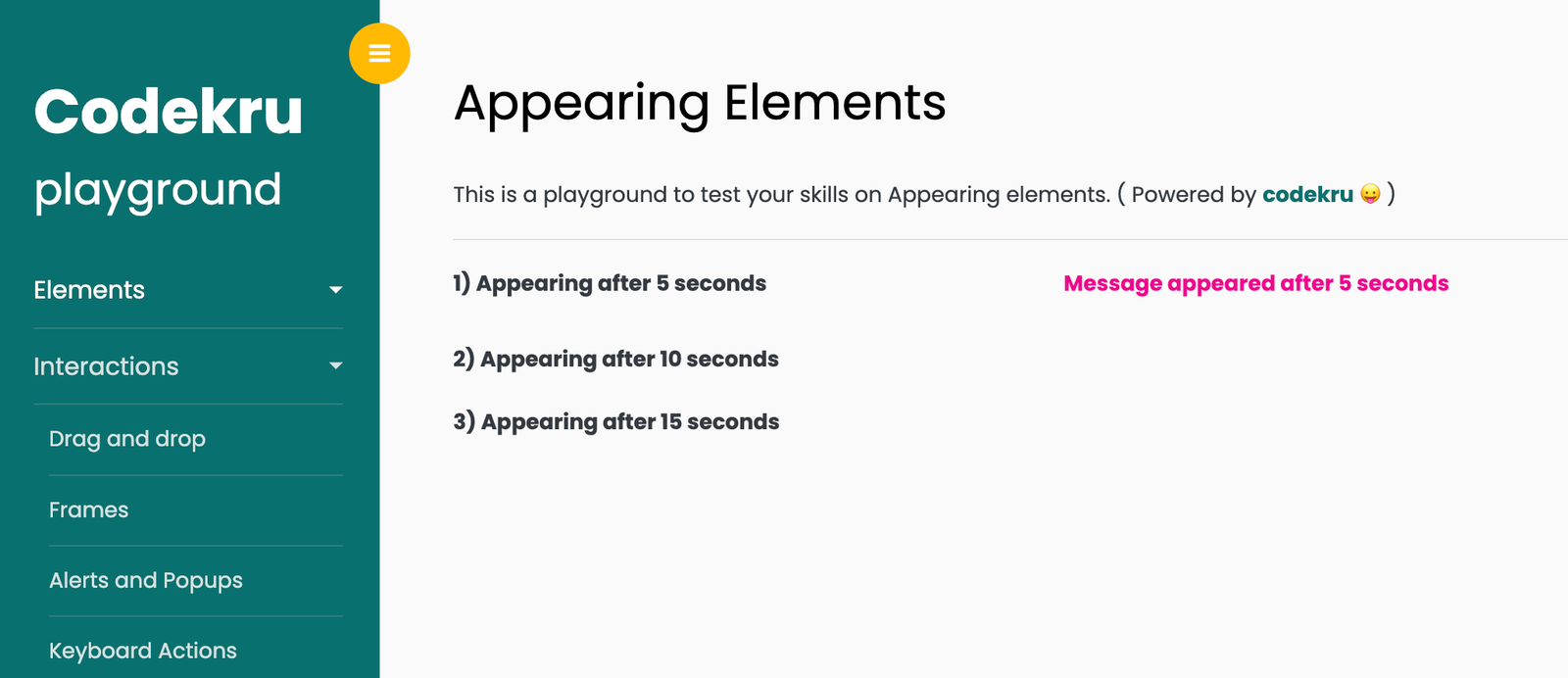
All three containers exist in the page’s HTML the moment the page loads. Their CSS starts them with display: none, and the page’s JavaScript switches each one to display: block once its delay ends. That is why this page never throws NoSuchElementException for these ids. The problem here is purely about visibility and timing, not about a missing element.
Read the five-second message right after the page loads, before its delay ends:
driver.get("https://testkru.com/Interactions/AppearingElements");

WebElement delayedMessage = driver.findElement(By.id("appearing5sec"));

Assert.assertFalse(delayedMessage.isDisplayed());
Assert.assertEquals(delayedMessage.getText(), "");
findElement() succeeds instantly, because appearing5sec is already part of the page’s HTML. isDisplayed() reports false, because the container’s CSS still says display: none at this exact moment. getText() returns an empty string. WebDriver’s getText() reads only what a real browser renders on screen, and a display: none element renders nothing, so there is no text to read yet. Five seconds later, the same three lines would show true and Message appeared after 5 seconds, but your test read them long before that.
This is the first proof this lesson asks you to build: Selenium can locate an element and still tell you, correctly, that it is not ready. Waiting for the right moment is next lesson’s job. This lesson’s job is recognizing the symptom.
Dynamic pages keep rewriting HTML
The delayed message on Appearing Elements changes one property on an element that never moves. Many real pages go further and rewrite entire sections of HTML: a table refreshes its rows after a filter, a list adds new items after a search, or a paginated table swaps its whole set of rows when you move to the next page.
You already saw this on Dynamic Components in the previous lesson, when clicking next on the orders table changed the row content from A-101 and A-102 to B-202 and B-203. At the time, the lesson only asked you to read the new rows and confirm the page status changed. It did not ask what happens to a WebElement variable that was already pointing at one of the old rows.
That question matters because of how this page updates itself. Many dynamic pages, including this one, do not edit old nodes in place. When you click next, the page’s JavaScript clears the old tr elements and creates brand-new ones to replace them, even though the new content looks like a normal table update. Selenium’s WebElement is a reference to one specific node, found at the moment you called findElement(). If the page removes that node, your reference points at something no longer part of the current page, even though your Java variable still holds it. That gap has its own name, and it is the second timing problem this lesson covers.
Stale elements: an old handle after the page changed
What stale means
A stale element is a WebElement that Selenium found successfully at some earlier moment, but that no longer matches any node in the page’s current HTML. The Java documentation describes StaleElementReferenceException as the exception Selenium throws when the referenced element no longer appears in the DOM of the page. The Selenium error-reference page adds the likely causes: the page’s HTML changed after the element was located, or the browser moved to a different page.
Here is one short way to picture it. When you call findElement(), Selenium hands you a reference to one exact node in the page’s current HTML, the way a sticky note might point to one exact paragraph on a page. If the page’s JavaScript later deletes that paragraph and writes a new one in its place, your sticky note still exists, but the paragraph it was pointing at is gone. Selenium’s stale WebElement works the same way: the reference is still sitting in your Java variable, but the node it was pointing at in the page’s HTML has already been removed.
This is different from the delayed-message problem. isDisplayed() on appearing5sec never lied to you. It correctly reported “not visible yet” about an element that was still present. A stale element cannot even answer that question, because the node itself is gone, not just invisible.
Reproduce staleness with the orders table
Return to Dynamic Components. Its orders table has the id orders, with its data rows inside a tbody with the id ordersRows. Page one shows two rows, A-101 and A-102. Clicking the next button replaces those tr elements with the page-two rows, B-202 and B-203. The ordersRows element itself stays in the page; only the tr rows inside it get swapped out.
Store a reference to the first row on page one, confirm it, then click next:
WebElement ordersBody = driver.findElement(By.id("ordersRows"));
WebElement firstRow = ordersBody.findElement(By.tagName("tr"));

Assert.assertTrue(firstRow.getText().contains("A-101"));

driver.findElement(By.id("next")).click();
At this point, firstRow still holds a WebElement, but the tr node it pointed to has been removed from the page and replaced with a page-two row. Calling almost any method on firstRow now, including getText(), throws StaleElementReferenceException. Catch it with a plain try/catch block so the test can confirm the exception happened instead of letting it crash the whole method:
boolean sawStaleElement = false;
try {
    firstRow.getText();
} catch (StaleElementReferenceException staleElement) {
    sawStaleElement = true;
}

Assert.assertTrue(sawStaleElement);
A try/catch lets you record that the exception occurred and then keep testing. That matters here because the next step is proving that the page still works after that failure.
The first fix: find the element again
ordersBody, the tbody with id ordersRows, is still valid. The page swapped the rows inside it, not the container itself, so re-finding through that same id gives you a fresh, current reference:
String page2Text = driver.findElement(By.id("ordersRows")).getText();

Assert.assertTrue(page2Text.contains("B-202"));
That single line is the entire fix for a stale element: locate it again, after the change that made the old reference stale. There is no “unstale” method and no configuration flag that prevents staleness. You either avoid holding old references across a page change, or you accept that they can go stale and re-find the element right before you need it again.
Beginners sometimes reach for Thread.sleep() here, adding a fixed pause before reading the page again. That does not fix staleness, since the old reference still points at a removed node no matter how long you wait. A fixed pause is also either too short, so the test still fails sometimes, or too long, so every run wastes time. The next lesson teaches Selenium’s real waiting tools, explicit and fluent waits, which solve timing properly instead of guessing a number of seconds.
Put the two proofs together
The complete class below builds both proofs from this lesson into two separate TestNG tests: one confirming that a delayed element is present but not yet displayed, and one confirming that pagination creates a stale element, then recovering by finding the row again. It assumes your existing Maven project already has Selenium 4 and TestNG configured from earlier lessons in this course.
Save the class
Create this file:
src/test/java/com/codekru/tests/WhyTestsFailPracticeTest.javaIf your project uses a different base package, adjust the package line to match it.
The complete example
package com.codekru.tests;

import org.openqa.selenium.By;
import org.openqa.selenium.StaleElementReferenceException;
import org.openqa.selenium.WebDriver;
import org.openqa.selenium.WebElement;
import org.openqa.selenium.chrome.ChromeDriver;
import org.testng.Assert;
import org.testng.annotations.AfterMethod;
import org.testng.annotations.BeforeMethod;
import org.testng.annotations.Test;

public class WhyTestsFailPracticeTest {

    private WebDriver driver;

    @BeforeMethod
    public void setUp() {
        driver = new ChromeDriver();
        driver.manage().window().maximize();
    }

    @Test
    public void shouldShowHiddenTextOnlyAfterDelay() {
        driver.get("https://testkru.com/Interactions/AppearingElements");
        Assert.assertEquals(driver.getTitle(), "Appearing Elements");

        WebElement delayedMessage = driver.findElement(By.id("appearing5sec"));

        Assert.assertFalse(delayedMessage.isDisplayed());
        Assert.assertEquals(delayedMessage.getText(), "");
    }

    @Test
    public void shouldThrowStaleElementAfterPaginationThenRecover() {
        driver.get("https://testkru.com/Elements/DynamicComponents");
        Assert.assertEquals(driver.getTitle(), "Dynamic Components");

        WebElement ordersBody = driver.findElement(By.id("ordersRows"));
        WebElement firstRow = ordersBody.findElement(By.tagName("tr"));

        Assert.assertTrue(firstRow.getText().contains("A-101"));

        driver.findElement(By.id("next")).click();

        boolean sawStaleElement = false;
        try {
            firstRow.getText();
        } catch (StaleElementReferenceException staleElement) {
            sawStaleElement = true;
        }
        Assert.assertTrue(sawStaleElement);

        String page2Text = driver.findElement(By.id("ordersRows")).getText();
        Assert.assertTrue(page2Text.contains("B-202"));
    }

    @AfterMethod
    public void tearDown() {
        if (driver != null) {
            driver.quit();
        }
    }
}
Understand each part
The imports bring in Selenium’s core classes, the StaleElementReferenceException type, and TestNG’s annotations and Assert. setUp() starts Chrome and maximizes the window before each test, and tearDown() closes it afterward, guarded by a null check in case Chrome never started.
shouldShowHiddenTextOnlyAfterDelay() opens Appearing Elements, confirms the title, then finds appearing5sec right away. findElement() succeeds because the element already exists in the HTML. isDisplayed() returns false and getText() returns an empty string, because the test read the page before the five-second delay finished. This test passes precisely because it does not wait, which is the point: it proves the timing gap exists, without trying to fix it yet.
shouldThrowStaleElementAfterPaginationThenRecover() opens Dynamic Components, confirms the title, then finds the ordersRows container and its first row, confirming that row contains A-101. Clicking next replaces the rows inside ordersRows. The try/catch block then calls getText() on the old firstRow reference, catches the StaleElementReferenceException that follows, and records that it happened in a boolean. Asserting that boolean is true proves the exception occurred, without letting it stop the test. The final two lines find ordersRows again and confirm its text now contains B-202, proving page two loaded and proving that re-finding is what makes the test usable again.
Run it and check the result
- Save the class in the path shown above.
- Open
WhyTestsFailPracticeTest.javain IntelliJ. - Right-click the class name and run it as a TestNG test, so both methods execute.
- You can also run it through the TestNG Maven setup already configured in your project.
Chrome should open Appearing Elements first, read the hidden message instantly, and finish before its five-second delay ever ends. It should then open Dynamic Components, read the first row, click next, and finish without visibly pausing, since the exception and the recovery both happen in code. Every assertion should pass, and the browser should close on its own after each test method.
If the first test fails on getText() instead of isDisplayed(), check that you are reading appearing5sec right after driver.get(), with no pause in between. If the second test fails on Assert.assertTrue(sawStaleElement), confirm that next was actually clicked before the try block ran.
Common beginner mistakes
- Asserting
getText()onappearing5secand expecting the final message right away. The container is present but hidden at page load. Reading it immediately correctly returns an empty string; the visible message only exists after the delay. - Assuming
NoSuchElementExceptionis the only timing bug. A missing element throws that exception. A present-but-hidden element does not. CheckisDisplayed()to tell them apart. - Mixing up hidden and missing.
findElement()succeeding tells you the node exists in the HTML. It says nothing about whether a person could currently see it on screen. - Keeping a row
WebElementacross a pagination click. Any reference taken before the click can go stale the moment the page swaps rows. Re-find the row, or the container that holds it, after the change. A pause does not restore a removed node. - Calling the whole
tbodystale when only its rows changed. On the orders table,ordersRowsitself stays in the page. Only thetrelements inside it get replaced, so re-finding throughordersRowsstill works. - Confusing
isDisplayed()returningfalsewithNoSuchElementExceptionon this TestKru page. On Appearing Elements,findElement()never fails for these ids.isDisplayed()returningfalseis a separate, calmer signal that the content exists but has not shown itself yet.
Here is a compact way to keep the three failure modes apart, including what a beginner actually sees for each one:
| Problem | What is really happening | What you see in your test |
|---|---|---|
| Too soon (timing) | Your test line runs before a delayed change finishes | isDisplayed() returns false, getText() returns "", no exception |
| Page rewrote HTML (dynamic) | JavaScript replaces or updates part of the DOM after an action | Old locators for that section stop matching current content until you search again |
| Old WebElement (stale) | Your stored reference points at a node the page already removed | StaleElementReferenceException on the next call to that reference |
Practice assignment
Practice reading content that appears after a delay, using the same Appearing Elements page from this lesson:
Continue practicing: Handle Dynamic Elements (Appearing Content)
Do not look for a completed solution here. Try to read the appearing content the moment the page loads, the same way this lesson’s first test did. If your first attempt fails an assertion or throws an exception, write down the exact assertion or exception name before changing anything. That note is exactly what the next lesson’s waits will fix, and seeing the failure yourself first will make that fix mean more.
You can browse every exercise in the Selenium learning catalog.
What is next
You can now name and reproduce two reasons Selenium tests fail on real pages: reading a delayed element before it is displayed, and holding a WebElement that the page already replaced with a stale reference. Both come from the same root cause, your test and the browser’s timeline are not synchronized, but each needs a different response once you spot it.
This lesson deliberately stopped short of fixing the timing problem, using try/catch only to prove staleness. The next lesson, Waits in Selenium: Explicit Wait, Fluent Wait, and Expected Conditions, introduces Selenium’s real tools: WebDriverWait paired with ExpectedConditions, and the more flexible FluentWait. You will revisit Appearing Elements and finally read its delayed message the moment it becomes true, instead of guessing how long to pause.