Welcome back
In the previous article, you learned how to click, type, clear, read, and assert. You also skipped the disabled button on TestKru because finding a button does not prove that it can be used.
Today you will inspect a control before acting on it. Selenium element states answer three practical questions:
| Question | WebElement method |
|---|---|
| Is this control shown? | isDisplayed() |
| Can the user use it? | isEnabled() |
| Is this checkbox, radio button, or option chosen? | isSelected() |
You will also read visible wording, HTML attributes, and CSS values. Together, these reads tell you more than a locator alone can tell you.
Most examples use TestKru Checkboxes. Its page title is Checkboxes. Later, you will briefly return to TestKru Buttons to inspect the disabled button that you skipped last time.
Ask before you act
A WebElement represents one control that Selenium found in the page document. The page document is the browser’s current structure of elements: every button, checkbox, heading, and field that the page currently contains.
An element can exist in that structure without being visible or usable. This creates an important difference:
Present: findElement(...) can locate the element in the page document.
Visible: isDisplayed() returns true because the element is shown.
Enabled: isEnabled() returns true because the control can be used.
Selected: isSelected() returns true because a choice control is chosen.
These facts are independent. A disabled checkbox can still be visible. A hidden checkbox can still be present. A visible checkbox can be enabled but not selected.
Use this order when the state matters:
1. Find the control.
2. Ask about its state.
3. Assert the state you expect.
4. Act only when that action makes sense.
5. Assert the result after the action.
If an element is not in the page document at all, findElement(...) throws an error. Your code never reaches isDisplayed() on that missing element. State methods answer questions about a WebElement that Selenium has already found.
The state methods return a Java boolean, either true or false. The previous lesson used Assert.assertEquals(...) to compare strings. TestNG has clearer assertions for boolean results:
Assert.assertTrue(element.isDisplayed());
Assert.assertFalse(element.isSelected());
assertTrue passes only when the result is true. assertFalse passes only when the result is false. You can include a message so a failed test explains what it expected:
Assert.assertFalse(
        checkbox.isSelected(),
        "The checkbox should start unselected");
Now apply that pattern to each state.
Visible: isDisplayed()
Visibility answers whether the element is shown on the page. Call isDisplayed() on a found element:
WebElement visibleCheckbox = driver.findElement(By.id("firstSelect1"));
Assert.assertTrue(visibleCheckbox.isDisplayed());
On the Checkboxes page, firstSelect1 is present and visible, so the method returns true.
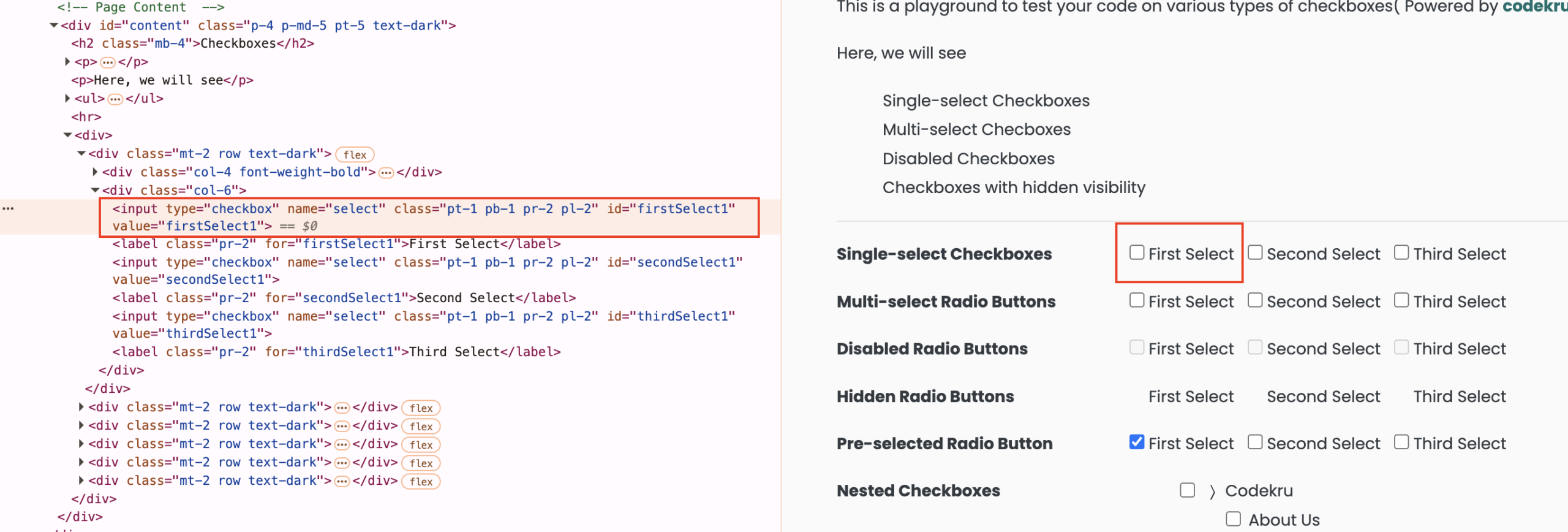
The page also has a hidden checkbox with the id secondSelect4. Its CSS sets visibility to hidden. Selenium can still find it because it remains in the page document:
WebElement hiddenCheckbox = driver.findElement(By.id("secondSelect4"));
Assert.assertFalse(hiddenCheckbox.isDisplayed());
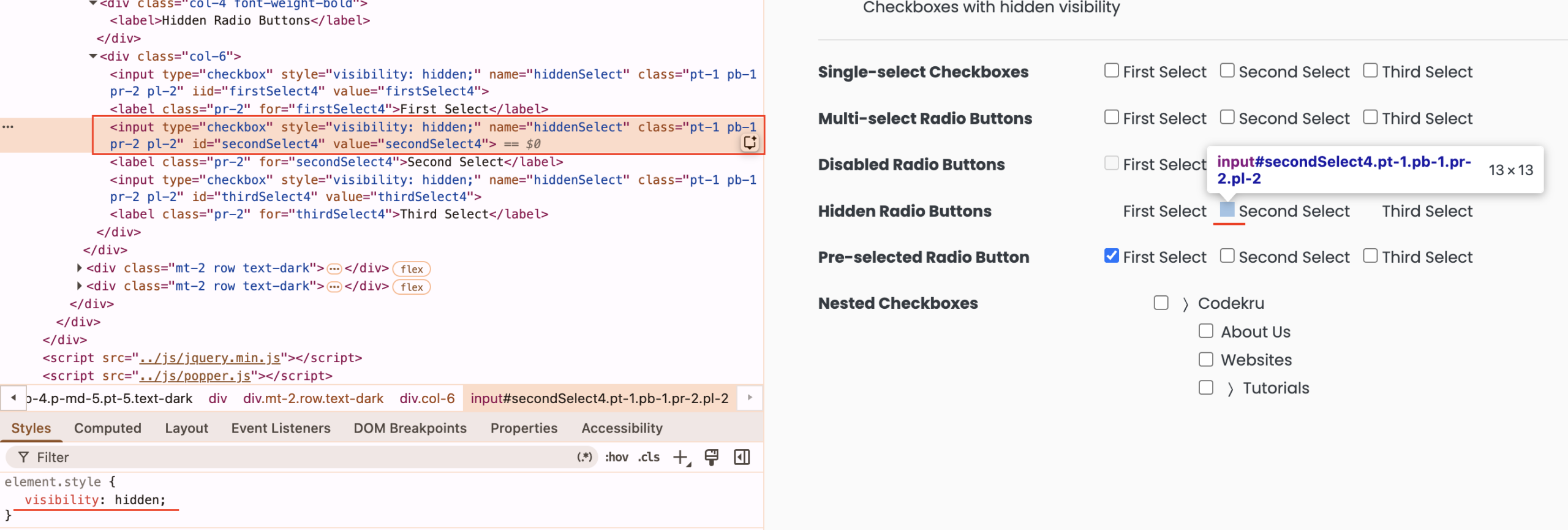
This is the key lesson: a successful findElement(...) does not mean the user can see the control.
| Element | findElement result | isDisplayed() |
|---|---|---|
firstSelect1 | Found | true |
secondSelect4 | Found | false |
Use isDisplayed() when visibility is part of the expected page behavior. For example, a test may check that an error message is shown after invalid input, or that a hidden control is not offered to the user.
Do not open the HTML and try to decide visibility by reading a style value yourself. isDisplayed() is the method that answers whether the control is shown. On this practice page, that is the difference between firstSelect1 and secondSelect4.
Do not click secondSelect4. It is present but hidden, so it is not a valid control for a normal user action. If a test clicks it anyway, Selenium may report that the element is not interactable. That error means the search found the control, but a person could not use it on the screen. Check isDisplayed() first, then decide whether a click belongs in the test.
Enabled: isEnabled()
An enabled control can be used. A disabled form control is still part of the page, and it can still be visible, but the page does not allow normal interaction with it.
On the Checkboxes page, firstSelect3 is visible and disabled:
WebElement disabledCheckbox = driver.findElement(By.id("firstSelect3"));

Assert.assertTrue(disabledCheckbox.isDisplayed());
Assert.assertFalse(disabledCheckbox.isEnabled());
The two assertions are not contradictory. The user can see the checkbox, but cannot use it.
The Buttons page demonstrates the same separation. Open https://testkru.com/Elements/Buttons first. Its disabledButton control is displayed, its wording is Disabled button, and isEnabled() returns false:

driver.get("https://testkru.com/Elements/Buttons");
WebElement disabledButton = driver.findElement(By.id("disabledButton"));

Assert.assertTrue(disabledButton.isDisplayed());
Assert.assertFalse(disabledButton.isEnabled());
Assert.assertEquals(disabledButton.getText(), "Disabled button");
Prefer isEnabled() when your question is, “Can this control be used?” The checkbox has a disabled HTML attribute, but reading that attribute makes the test depend on markup details. The state method states your intent directly.
Do not use a click on a disabled control as a successful test path. First assert that it is disabled. If the application should enable it after another user action, a later test can check that state change before clicking.
Selected: isSelected()
Selection applies to controls that represent a choice: checkboxes, radio buttons, and options inside a select element. It does not mean the same thing as visible or enabled.
The checkbox firstSelect1 starts visible, enabled, and not selected:
WebElement checkbox = driver.findElement(By.id("firstSelect1"));

Assert.assertTrue(checkbox.isDisplayed());
Assert.assertTrue(checkbox.isEnabled());
Assert.assertFalse(checkbox.isSelected());
Because it is visible and enabled, this lesson can safely click it. Check the state again afterward:
checkbox.click();
Assert.assertTrue(checkbox.isSelected());
That last assertion proves the checkbox changed from unselected to selected. It is stronger than ending the test immediately after click().
The Checkboxes page also has firstSelect5, which is checked when the page loads:
WebElement preSelectedCheckbox = driver.findElement(By.id("firstSelect5"));
Assert.assertTrue(preSelectedCheckbox.isSelected());
Prefer isSelected() over reading the checked attribute. The method expresses the result a user cares about: whether the choice is currently selected.
Do not call isSelected() on an ordinary button to ask whether it can be clicked. Use isEnabled() for usability. Radio-button groups and select options use the same selection idea, and you will practice those form controls in the next lesson.
Text and attributes
State methods return booleans. getText() and getAttribute(...) answer different questions by returning strings.
Use getText() for visible wording. The heading on the Checkboxes page can be found with the CSS selector you learned in Module 2:
WebElement heading = driver.findElement(By.cssSelector("#content h2"));
Assert.assertEquals(heading.getText(), "Checkboxes");
The disabled button also has visible wording. After you open the Buttons page and find disabledButton, you can reuse that same element:
Assert.assertEquals(disabledButton.getText(), "Disabled button");
A checkbox input does not contain visible inner wording, so its getText() result is empty:
Assert.assertEquals(checkbox.getText(), "");
This is the same kind of surprise you saw with text inputs in the previous lesson. A nearby label may show words, but those words are not inside the checkbox element itself.
Use getAttribute(...) when you need a named detail from the element. For firstSelect1, these reads are useful:
Assert.assertEquals(checkbox.getAttribute("id"), "firstSelect1");
Assert.assertEquals(checkbox.getAttribute("type"), "checkbox");
Assert.assertEquals(checkbox.getAttribute("value"), "firstSelect1");
The id identifies the element, type tells you that the input is a checkbox, and value is the value associated with that input. These details describe the element. They do not replace the state methods.
Do not use getAttribute("checked") as a substitute for isSelected(), and do not use getAttribute("disabled") as a substitute for isEnabled(). Those attribute reads depend on how the HTML was written. The boolean methods ask the question your test actually cares about.
Choose the method by the question:
| Question | Method |
|---|---|
| What visible wording does it show? | getText() |
| What is its current named detail? | getAttribute("...") |
| Is it shown? | isDisplayed() |
| Can it be used? | isEnabled() |
| Is the choice selected? | isSelected() |
CSS values with getCssValue()
CSS controls how a page looks. getCssValue("property-name") reads the computed value of one CSS property. Computed means the final value the browser is using after it applies the page’s styles.
Visibility makes a clear example. Compare the visible and hidden checkboxes:
WebElement visibleCheckbox = driver.findElement(By.id("firstSelect1"));
WebElement hiddenCheckbox = driver.findElement(By.id("secondSelect4"));

Assert.assertEquals(
        visibleCheckbox.getCssValue("visibility"),
        "visible");

Assert.assertEquals(
        hiddenCheckbox.getCssValue("visibility"),
        "hidden");
These CSS reads explain the displayed states on this practice page. firstSelect1 has computed visibility visible. secondSelect4 has computed visibility hidden, and isDisplayed() returns false.
The two methods answer related but different questions:
| Method | Question answered |
|---|---|
isDisplayed() | Is the element shown on the page? |
getCssValue("visibility") | What computed value does this CSS property have? |
Use the full property name, such as background-color or font-size. Do not ask for a shorthand such as background or font. Selenium returns values for those individual property names, not for the grouped names.
If you later read a color, such as getCssValue("background-color") on the left-click button, expect a value such as rgb(...) or rgba(...). Do not write an assertion that expects the word yellow or black. Color string formats can differ between browsers, so the complete example uses the stable visible and hidden values for its CSS assertions.
A complete TestNG example
You now have one method for each question: shown, usable, selected, wording, named detail, and computed style. The complete example joins those reads into one test so you can watch the whole check in Chrome.
It assumes your Maven project already contains Selenium 4 and TestNG, just as it did in the previous lesson.
The test stays mainly on Checkboxes. It then visits Buttons for one short check of the disabled control and its visible wording.
Save the class
Create this file:
src/test/java/com/codekru/tests/ElementStatesPracticeTest.javaIf your project uses a different base package, change the package line to match it.
The complete example
package com.codekru.tests;

import org.openqa.selenium.By;
import org.openqa.selenium.WebDriver;
import org.openqa.selenium.WebElement;
import org.openqa.selenium.chrome.ChromeDriver;
import org.testng.Assert;
import org.testng.annotations.AfterMethod;
import org.testng.annotations.BeforeMethod;
import org.testng.annotations.Test;

public class ElementStatesPracticeTest {

    private WebDriver driver;

    @BeforeMethod
    public void setUp() {
        driver = new ChromeDriver();
        driver.manage().window().maximize();
    }

    @Test
    public void shouldReadVisibleEnabledSelectedTextAndCss() {
        driver.get("https://testkru.com/Elements/Checkboxes");
        Assert.assertEquals(driver.getTitle(), "Checkboxes");

        WebElement heading =
                driver.findElement(By.cssSelector("#content h2"));
        Assert.assertEquals(heading.getText(), "Checkboxes");

        WebElement checkbox = driver.findElement(By.id("firstSelect1"));
        Assert.assertTrue(checkbox.isDisplayed());
        Assert.assertTrue(checkbox.isEnabled());
        Assert.assertFalse(checkbox.isSelected());
        Assert.assertEquals(checkbox.getText(), "");
        Assert.assertEquals(checkbox.getAttribute("id"), "firstSelect1");
        Assert.assertEquals(checkbox.getAttribute("type"), "checkbox");
        Assert.assertEquals(checkbox.getAttribute("value"), "firstSelect1");
        Assert.assertEquals(
                checkbox.getCssValue("visibility"),
                "visible");

        checkbox.click();
        Assert.assertTrue(checkbox.isSelected());

        WebElement disabledCheckbox =
                driver.findElement(By.id("firstSelect3"));
        Assert.assertTrue(disabledCheckbox.isDisplayed());
        Assert.assertFalse(disabledCheckbox.isEnabled());

        WebElement hiddenCheckbox =
                driver.findElement(By.id("secondSelect4"));
        Assert.assertFalse(hiddenCheckbox.isDisplayed());
        Assert.assertEquals(
                hiddenCheckbox.getCssValue("visibility"),
                "hidden");

        WebElement preSelectedCheckbox =
                driver.findElement(By.id("firstSelect5"));
        Assert.assertTrue(preSelectedCheckbox.isSelected());

        driver.get("https://testkru.com/Elements/Buttons");
        Assert.assertEquals(driver.getTitle(), "Buttons");

        WebElement disabledButton =
                driver.findElement(By.id("disabledButton"));
        Assert.assertTrue(disabledButton.isDisplayed());
        Assert.assertFalse(disabledButton.isEnabled());
        Assert.assertEquals(
                disabledButton.getText(),
                "Disabled button");
    }

    @AfterMethod
    public void tearDown() {
        if (driver != null) {
            driver.quit();
        }
    }
}
Understand each part
The imports provide WebDriver, locators, WebElement, ChromeDriver, TestNG assertions, and the TestNG lifecycle annotations.
setUp() starts Chrome before the test and maximizes the window. Maximizing makes the controls easier to watch.
The test opens Checkboxes and verifies the title. It then reads #content h2 with getText() to prove that the visible page heading is Checkboxes.
Next, it finds firstSelect1. The assertions prove that this checkbox is displayed, enabled, and initially unselected. They also show that getText() is empty on the input, while getAttribute(...) returns its id, type, and value. The CSS assertion confirms that its computed visibility is visible.
The click is placed only after the displayed and enabled checks. The following isSelected() assertion proves that the checkbox became selected.
The next three controls show different starting conditions. firstSelect3 is displayed but disabled. secondSelect4 is findable but hidden, and its computed visibility is hidden. firstSelect5 is already selected when the page loads.
Finally, the test opens Buttons. It confirms that disabledButton is displayed, not enabled, and has the visible wording Disabled button. It does not click that button.
tearDown() closes the complete browser session with quit(). The null check keeps cleanup safe if Chrome did not start.
Run it and check the result
- Save the class in your existing test package.
- In IntelliJ, open
ElementStatesPracticeTest.java. - Run
shouldReadVisibleEnabledSelectedTextAndCssas a TestNG test. - You can also use the TestNG Maven command already configured in your project.
Chrome should open Checkboxes. The first checkbox should change from unchecked to checked. The hidden and disabled controls should not be clicked. Chrome should then open Buttons, inspect the disabled button, pass every assertion, and close.
A successful run appears green in TestNG with no assertion failures. If a state assertion fails, read its expected and actual values. Then inspect the exact id on TestKru Checkboxes before changing the code.
Common beginner mistakes
- Treating found as visible.
findElement(...)can returnsecondSelect4even thoughisDisplayed()isfalse. - Clicking a hidden or disabled control. Check the state first. This lesson clicks only
firstSelect1, which is displayed and enabled. - Using
isSelected()on a normal button. Selection is for checkboxes, radio buttons, and select options. UseisEnabled()to ask whether a button can be used. - Using
getText()on a checkbox input. The checkbox itself has no visible inner wording, so the result is empty. Read a nearby label separately when its wording matters. - Reading
checkedordisabledinstead of asking for state. PreferisSelected()andisEnabled()because those methods state the test’s intent. - Asserting a CSS color name. A browser commonly returns
rgb(...)orrgba(...), not a word such asyellow. - Using CSS shorthand names. Ask for
background-colororfont-size, notbackgroundorfont. - Choosing the wrong hidden checkbox. Do not use the first hidden box on this practice page. Its markup contains
iid="firstSelect4", not a realid. Use the verifiedsecondSelect4control.
Practice assignment
Now practice visibility without copying the complete example. The catalog exercise uses the Text Fields page. It asks you to compare a visible field with a hidden field.
Your task:
- Open the assignment and read the expected result.
- Find each requested field with the locator given by the exercise.
- Use
isDisplayed()to read each state. - Assert the expected
trueorfalseresult with TestNG. - Do not click the hidden field, and do not look up a finished solution.
Continue practicing: isDisplayed() – Check Element Visibility
Continue with isEnabled() – Check Enabled State and isSelected() – Check Selection State for the other two boolean states.
For more reading practice, use Get CSS Value with getCssValue() and Get Attribute Value with getAttribute().
You can browse the full Selenium learning catalog when you want to revisit an earlier skill.
What is next
You can now separate four ideas that beginners often mix together: present, visible, enabled, and selected. You can also choose between getText(), getAttribute(...), and getCssValue(...) based on the question your test needs to answer.
The next lesson is Forms Made Easy: Inputs, Checkboxes, Radio Buttons, and Select Dropdowns. You will use these state checks while working with complete forms and groups of choices.