Welcome back
In the previous article, you learned Selenium’s locator menu and a simple order of preference: unique id first, then a clear CSS selector when id is missing, then XPath when relationships demand it.
This lesson zooms into CSS. You will learn the selector patterns you will reuse on almost every real page: id, class, attributes, descendants, and combinations that stay short enough to trust.
Open https://testkru.com/Elements/TextFields in a second tab while you read. Almost every example below comes from that page, so you can inspect the same HTML and try the same selector in DevTools.
What a CSS selector is
A CSS selector is a pattern that describes which elements in the DOM you mean. Front-end developers use selectors to style pages. Selenium reuses the same language to find controls for automation.
That reuse is why CSS feels natural in WebDriver: the browser already knows how to evaluate the pattern. In Java you pass the selector string to By.cssSelector(...), then call findElement or findElements.
WebElement lastName = driver.findElement(
        By.cssSelector("input[name='lastName']"));
Read that call in two layers:
"input[name='lastName']"is ordinary CSS: “aninputwhosenameattribute equalslastName.”By.cssSelector(...)wraps that pattern as a Selenium locator strategy.
Official locator docs list css selector as one of the eight traditional strategies: Selenium locator strategies. Selenium’s Java API notes that cssSelector finds elements through the driver’s selector engine (the browser’s CSS selector support): By.cssSelector Javadoc
Why this matters for beginners:
- You do not invent a Selenium-only mini language for everyday attribute searches.
- The same pattern you test in Chrome DevTools can move into your Java test with almost no change.
- Selenium’s encouraged practice prefers a well-written CSS selector when unique ids are unavailable: Tips on working with locators.
How to try a selector before you code
Before you paste a selector into Java, prove it in the browser.
- Open the page and press
F12(or right-click Inspect). - Open the Elements panel.
- Press
Ctrl+F(Windows/Linux) orCmd+F(macOS) inside that panel. - Type your CSS selector in the search box.
DevTools highlights matches as you type. If you see zero matches, the selector is wrong for the live DOM. If you see many matches, findElement will still return only the first one, so tighten the pattern until one intended control stands out.
This habit saves hours later. A failing Java test often means “the selector never uniquely matched,” not “Selenium is broken.”
Start with tag, id, and class
CSS has three building blocks you will use constantly. They map cleanly to HTML you already inspected in Module 1.
| Pattern | Meaning | Example |
|---|---|---|
tag | Any element with that tag name | input, button, a |
#id | Element whose id equals the value | #lastNameWithPlaceholder |
.class | Element that includes that class token | .lastNameWithPlaceholder |
On Text Fields, field 2 looks like this:
<input type="text" name="lastName" id="lastNameWithPlaceholder"
       class="pt-1 pb-1 pr-2 pl-2 lastNameWithPlaceholder"
       placeholder="Enter your last name...">
These three selectors all find that field today:
driver.findElement(By.cssSelector("input"));                 // too broad on most pages
driver.findElement(By.cssSelector("#lastNameWithPlaceholder"));
driver.findElement(By.cssSelector(".lastNameWithPlaceholder"));
Prefer `#id` when the id is unique
#lastNameWithPlaceholder is the CSS form of “find this id.” It overlaps By.id("lastNameWithPlaceholder"). That overlap is normal.
For a single unique id, By.id remains the clearest beginner call. Teams sometimes standardize on CSS for every locator so the codebase uses one style. Both are valid. Do not rewrite a perfect By.id into CSS just for ceremony.
Look at the class list again: pt-1 pb-1 pr-2 pl-2 lastNameWithPlaceholder. The first four tokens are layout utilities shared by many fields. .pt-1 alone is a weak locator. .lastNameWithPlaceholder is specific on this page, so it is useful.
Rule of thumb: prefer classes that name the control’s role, not its padding.
Compound classes need CSS, not By.className
By.className accepts one class token only. This fails:
// Wrong: compound class string
driver.findElement(By.className("pt-1 pb-1"));
CSS can require several classes on the same element by chaining dots with no space:
driver.findElement(By.cssSelector(".pt-1.pb-1.pr-2.pl-2.lastNameWithPlaceholder"));
That works, but it is still a poor everyday choice because it leans on layout classes. Prefer #lastNameWithPlaceholder or input[name='lastName'] here. Remember the compound-class rule for the day a meaningful multi-class marker is your only stable clue.
Attribute selectors: match what the HTML exposes
When id is missing, duplicated, or generated, attributes become your best friends. CSS attribute selectors let you match exact values or partial values.
Field 2 again is the teaching example:
driver.findElement(By.cssSelector("input[name='lastName']"));
driver.findElement(By.cssSelector("input[placeholder='Enter your last name...']"));
driver.findElement(By.cssSelector("[id='lastNameWithPlaceholder']"));
Quotes inside the CSS string matter in Java. A common, readable style is double quotes for the Java string and single quotes for the attribute value:
By.cssSelector("input[name='lastName']")
Exact, presence, and partial matches
| Selector shape | Matches when | Example |
|---|---|---|
[attr='value'] | Attribute equals value | input[name='lastName'] |
[attr] | Attribute exists (any value) | input[placeholder] |
[attr^='value'] | Attribute starts with value | input[id^='lastName'] |
[attr$='value'] | Attribute ends with value | input[id$='Placeholder'] |
[attr*='value'] | Attribute contains value | input[placeholder*='last name'] |
These partial forms are powerful on dynamic pages where part of an id stays stable (user_, order-, and so on). They are also easy to overuse. input[id*='Name'] might match more fields than you expect. Always confirm match count in DevTools.
A practical middle ground on Text Fields:
driver.findElement(By.cssSelector("input[id^='lastName']"));
That finds field 2 because its id starts with lastName. It stays shorter than copying a long placeholder string, and it still avoids the duplicated firstName trap on the same page.
Combine tag + attribute for clarity
[name='lastName'] can work alone. Prefacing the tag (input[name='lastName']) documents the kind of control you expect and reduces accidental matches on non-input nodes that somehow share the attribute. Prefer the clearer form unless you have a reason to stay tag-agnostic.
Combinators: relate elements without hard-coding the whole path
So far, every selector looked at one element in isolation. Combinators let you describe relationships between elements. That is how you scope a search: “the field inside this section,” not “any matching field on the whole page.”
You only need the everyday ones for this lesson:
| Combinator | Syntax | Meaning |
|---|---|---|
| Descendant | A B (space) | B anywhere inside A |
| Child | A > B | B is a direct child of A |
| Adjacent sibling | A + B | B immediately follows A |
| General sibling | A ~ B | B follows A under the same parent |
MDN’s overview of these patterns is a good reference when you want more depth: CSS selectors and combinators.
Descendant and child
On Text Fields, the practice inputs sit inside a wrapper with id="textFieldElements". That wrapper is a real scoping anchor.
// Matches: last name input nested somewhere under the section
driver.findElement(
        By.cssSelector("#textFieldElements input[name='lastName']"));
The space between #textFieldElements and input[...] is the descendant combinator. It means “find that input anywhere inside the section,” even if extra layout divs sit in between.
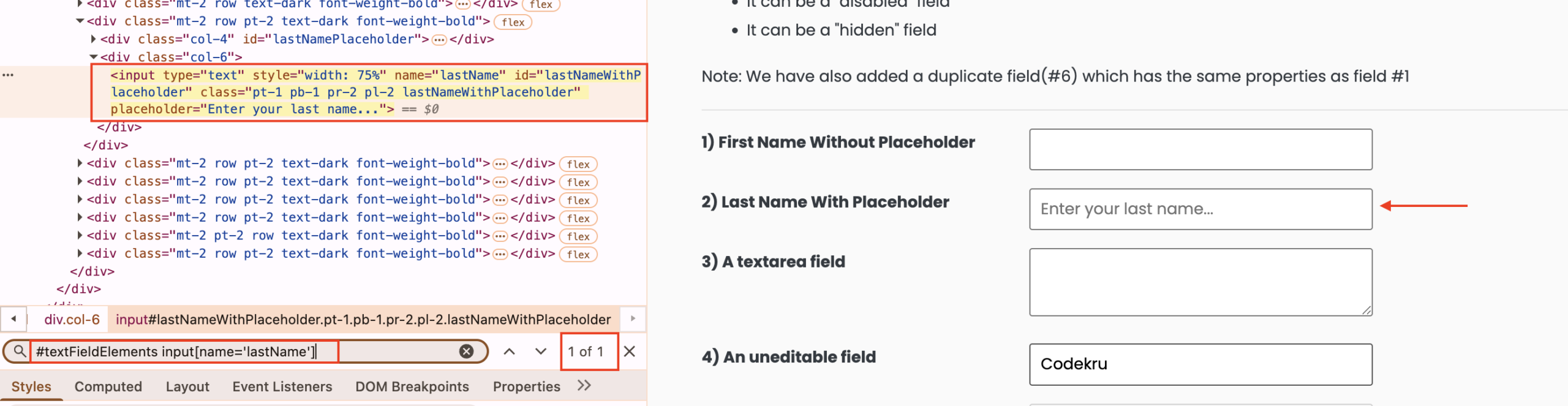
Now compare the child combinator:
// Does NOT match on this page: the input is not a direct child
driver.findElement(
        By.cssSelector("#textFieldElements > input[name='lastName']"));
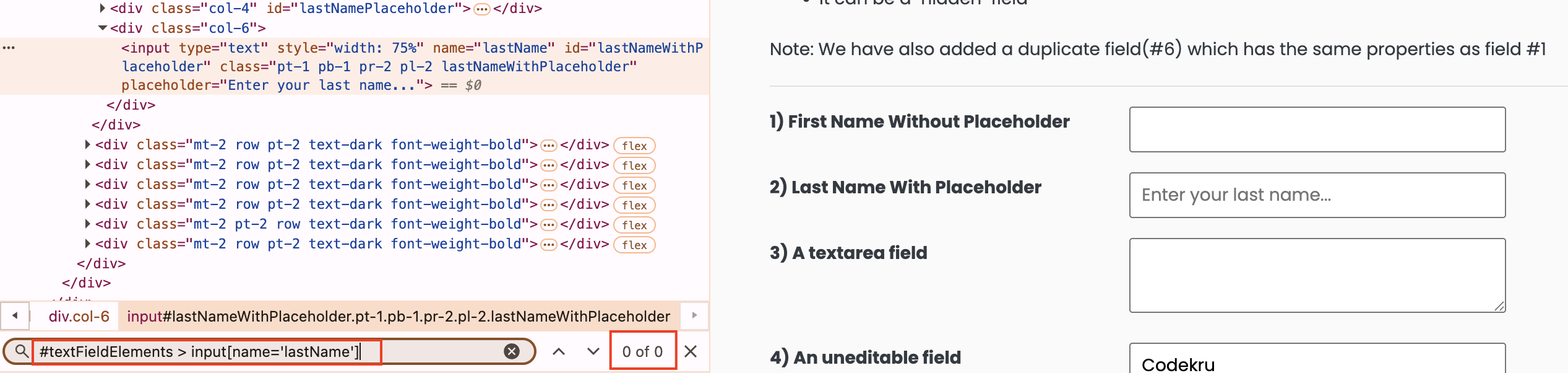
On the live page, each input is wrapped in nested layout divs, so #textFieldElements > input... finds nothing and Selenium throws NoSuchElementException. That contrast is the whole lesson: use > only when the element truly is a direct child. Use the descendant space when nesting depth can change without changing meaning.
Real apps use the same idea with forms, cards, dialogs, and side panels. Scope first, then name the control inside.
Sibling combinators in one sentence each
label + input finds an input that immediately follows a label. h2 ~ p finds paragraphs that follow a heading under the same parent. These help when a neighbor is easier to identify than the control’s own attributes.
Do not build long sibling chains to reconstruct the whole page. If you need “go up to a parent, then sideways, then down,” that path is often clearer in XPath, which the next lesson teaches.
Build selectors that stay readable
A good CSS locator is specific enough to be unique and short enough to read aloud.
Weak:   body > div > div:nth-child(2) > div > input:nth-child(3)
Better: input[name='lastName']
Also good: #textFieldElements input[name='lastName']
Best:   #lastNameWithPlaceholder   (when that id is unique and stable)
Selenium’s own guidance matches this instinct: keep locators compact and readable, and narrow the search whenever you can. Long :nth-child chains feel precise and break when one marketing banner appears above your form.
How CSS overlaps other By methods
CSS often expresses the same idea as a dedicated By method. Knowing the overlap helps you read other people’s tests.
| Goal | Dedicated By method | Equivalent CSS idea |
|---|---|---|
| Match an id | By.id("x") | #x |
| Match a name | By.name("email") | [name='email'] |
| Match one class token | By.className("btn") | .btn |
| Match a tag | By.tagName("input") | input |
| Match several clues at once | (no single shortcut) | input.btn[name='save'] |
Use the dedicated methods when they keep the line obvious. Reach for CSS when you need combinations, partial attribute matches, or scoped searches that those shortcuts cannot express alone.
Practical checklist before you commit a selector:
- Does it match exactly one intended element in DevTools?
- Does it anchor on a stable clue (id, name, role-like class, test id) rather than layout order?
- Can a teammate understand it without opening the page?
- Would a small UI copy change break it? (Prefer attributes over visible text when you can.)
CSS is excellent at tags, ids, classes, attributes, and downward/sibling structure. It is a weaker everyday tool for “find by visible text that is not a link” and for walking upward to parents. Those gaps are why Module 2 continues with XPath next, not because CSS failed.
Put CSS selectors into one runnable test
This example stays in your existing Maven TestNG project. It opens Text Fields, finds the same last-name control with several CSS styles, types codekru, then uses an attribute selector on the Buttons page to find a disabled control.
Where to save the class
Create CssSelectorsPracticeTest.java under src/test/java/com/codekru/tests/ (adjust the package if your project differs).
The complete example
package com.codekru.tests;

import org.openqa.selenium.By;
import org.openqa.selenium.WebDriver;
import org.openqa.selenium.WebElement;
import org.openqa.selenium.chrome.ChromeDriver;
import org.testng.Assert;
import org.testng.annotations.AfterMethod;
import org.testng.annotations.BeforeMethod;
import org.testng.annotations.Test;

public class CssSelectorsPracticeTest {

    private WebDriver driver;

    @BeforeMethod
    public void setUp() {
        driver = new ChromeDriver();
    }

    @Test
    public void shouldFindElementsWithPracticalCssSelectors() {
        driver.get("https://testkru.com/Elements/TextFields");

        WebElement byIdCss = driver.findElement(
                By.cssSelector("#lastNameWithPlaceholder"));
        byIdCss.clear();
        byIdCss.sendKeys("codekru");
        Assert.assertEquals(byIdCss.getAttribute("value"), "codekru");

        WebElement byNameAttr = driver.findElement(
                By.cssSelector("input[name='lastName']"));
        Assert.assertEquals(
                byNameAttr.getAttribute("id"),
                "lastNameWithPlaceholder");

        WebElement byStartsWith = driver.findElement(
                By.cssSelector("input[id^='lastName']"));
        Assert.assertEquals(
                byStartsWith.getAttribute("placeholder"),
                "Enter your last name...");

        WebElement byClass = driver.findElement(
                By.cssSelector("input.lastNameWithPlaceholder"));
        Assert.assertEquals(byClass.getAttribute("name"), "lastName");

        WebElement byScoped = driver.findElement(
                By.cssSelector("#textFieldElements input[name='lastName']"));
        Assert.assertEquals(
                byScoped.getAttribute("id"),
                "lastNameWithPlaceholder");

        driver.get("https://testkru.com/Elements/Buttons");

        WebElement disabled = driver.findElement(
                By.cssSelector("button[id='disabledButton'][disabled]"));
        Assert.assertFalse(disabled.isEnabled());
        Assert.assertEquals(disabled.getText().trim(), "Disabled button");
    }

    @AfterMethod
    public void tearDown() {
        if (driver != null) {
            driver.quit();
        }
    }
}
What each part does:
@BeforeMethodopens a fresh Chrome session.#lastNameWithPlaceholdershows the CSS id selector. Typingcodekruproves you landed on an editable field.input[name='lastName']is the everyday attribute pattern that replaces a missing unique id on many forms.input[id^='lastName']practices a starts-with match without grabbing the duplicatedfirstNamefields.input.lastNameWithPlaceholdercombines tag + class. The meaningful class token is intentional; layout utilities are not.#textFieldElements input[name='lastName']scopes the attribute search inside the practice section with a descendant combinator.- On Buttons,
button[id='disabledButton'][disabled]chains two attribute conditions: the id you want, and the presence of thedisabledattribute. @AfterMethodcallsquit()so the browser closes after pass or fail.
How to run it and what to expect
- Save the class in your test package.
- Run
shouldFindElementsWithPracticalCssSelectorsfrom IntelliJ or your usual TestNG/Maven command. - Chrome should open Text Fields, type into the last name box, move to Buttons, pass the assertions, and close.
If a selector fails, paste the exact string into DevTools search on the same page. Fix the pattern there first, then update the Java string.
Common beginner mistakes
- Copying a long DevTools “Copy selector” path. Browser tools often generate brittle
nth-childchains. Rewrite them into id or attribute form. - Using a space when you meant one element.
.a .bmeans “.binside.a.”.a.bmeans “one element that has both classes.” That single space changes everything. - Trusting layout classes.
.pt-1and friends match half the form. Prefer role-like classes or attributes. - Forgetting that
findElementreturns the first match. Broad selectors such asinputor.btnsilently automate the wrong control. - Putting two classes into
By.className. Use CSS chaining (.one.two) instead. - Matching on visible text with CSS by default. CSS is not the everyday tool for “the button labeled Save” unless that text lives in an attribute. Prefer attributes now; learn text-based XPath next when you need it.
Practice assignment
Turn today’s patterns into muscle memory: inspect first, prove the selector in DevTools, then use By.cssSelector in Java.
Your task:
- Open the assignment page linked below.
- Inspect the target element and choose a CSS selector (id, class, or attribute).
- Confirm the selector matches the intended control in DevTools search.
- Write a Selenium Java test that finds it with
By.cssSelector(...). - Assert one fact that proves you found the right element.
- Do not look up a finished solution.
Continue practicing: CSS Selectors – Basics
When you want more attribute practice after that, continue with CSS Selectors – Attribute Selectors. Browse the full set anytime in the Selenium learning catalog.
What is next
You can now write CSS selectors that match by id, class, attributes, and simple relationships, and you know how to prove them in DevTools before they enter a test.
Next up is XPath: Relative Paths, Functions, Axes, and Dynamic Elements. You will learn when the tree relationship or nearby text makes XPath the clearer tool, and how to keep XPath relative instead of brittle.
Summary
- A CSS selector is a DOM pattern; Selenium’s
By.cssSelectorasks the browser’s selector engine to find matching elements. - Prove selectors in DevTools search before you hard-code them in Java.
- Start with
#id, meaningful.class, and attribute selectors such asinput[name='...']. - Use
^=,$=, and*=carefully for partial attribute matches on dynamic values. - Combinators (
>,+,~) scope searches by relationship; keep them short. - Prefer compact, stable clues over long
nth-childpaths. - Scope with descendant selectors such as
#textFieldElements input[...]when a section wrapper exists. - Use CSS as the flexible default after unique id; save upward travel and many text cases for XPath.