Welcome back
In the previous article, you learned CSS selectors: id, class, attributes, and combinators. CSS is still your everyday default after a unique id. Reach for XPath when CSS cannot say what you mean in a simple way.
Two common examples:
- You know the label text, not a stable id. You want the button that says
Disabled button. CSS is built around tags and attributes. XPath can match that visible text directly. - You found one cell and need its whole row. You already have the name cell. Now you need the salary in that same row. XPath can start at the name cell and move to a neighbor or parent. CSS is weaker at that kind of “start here, then move” search.
So you do not use XPath because it is “more powerful” in general. You use it when you need text matching or tree relationships that CSS does not express cleanly. This lesson teaches relative XPath, text and partial-attribute functions, axes for those relationships, and patterns for ids that change between page loads.
Open two tabs before you continue: https://testkru.com/Elements/TextFields and https://testkru.com/Elements/Tables. You will also visit Buttons and Links along the way. Inspecting the same HTML while you read makes every example click into place.
What XPath is
XPath stands for XML Path Language. It is a query language built to locate nodes inside an XML document. An HTML page, once the browser parses it, is really a tree of nodes too, so browsers let you run XPath queries against the live DOM just as easily as CSS selectors.
In Selenium, you hand an XPath string to By.xpath(...):
WebElement lastName = driver.findElement(
        By.xpath("//input[@id='lastNameWithPlaceholder']"));
Read that in the same two layers you used for CSS:
"//input[@id='lastNameWithPlaceholder']"is ordinary XPath: “anywhere in the document, find aninputwhoseidattribute equalslastNameWithPlaceholder.”By.xpath(...)wraps that query as a Selenium locator strategy.
XPath is one of Selenium’s eight traditional locator strategies, listed alongside id, name, and CSS selector in the official docs: Selenium locator strategies. The Java method is By.xpath(...): By class Javadoc. Selenium did not invent XPath. It reuses the browser’s own XPath evaluator, so the query you test in DevTools behaves the same way once it reaches your Java test.
When XPath is the right tool
XPath can find almost anything on a page, which tempts beginners to use it for every locator. Selenium’s own guidance is stricter: prefer a unique id first, then a well-written CSS selector, and use XPath when the relationship you need is awkward in CSS: Tips on working with locators.
Three situations come up constantly:
- Matching visible text. “Find the button labeled Disabled button” is natural in XPath and awkward in CSS.
- Walking upward. “Find this cell, then its parent row” is a natural job for XPath’s
parent::axis. That upward step is the everyday reason teams reach for XPath after CSS. - Sibling relationships that depend on content. “Find the salary cell that sits next to the cell containing this employee’s name” combines text matching and sideways movement in one query.
Outside those cases, a clean CSS selector or a unique id is usually shorter and easier to read at a glance. Keep both tools in your kit and reach for XPath deliberately, not by default.
How to try an XPath in DevTools
Prove every XPath in the browser before it goes into Java, exactly like you did with CSS.
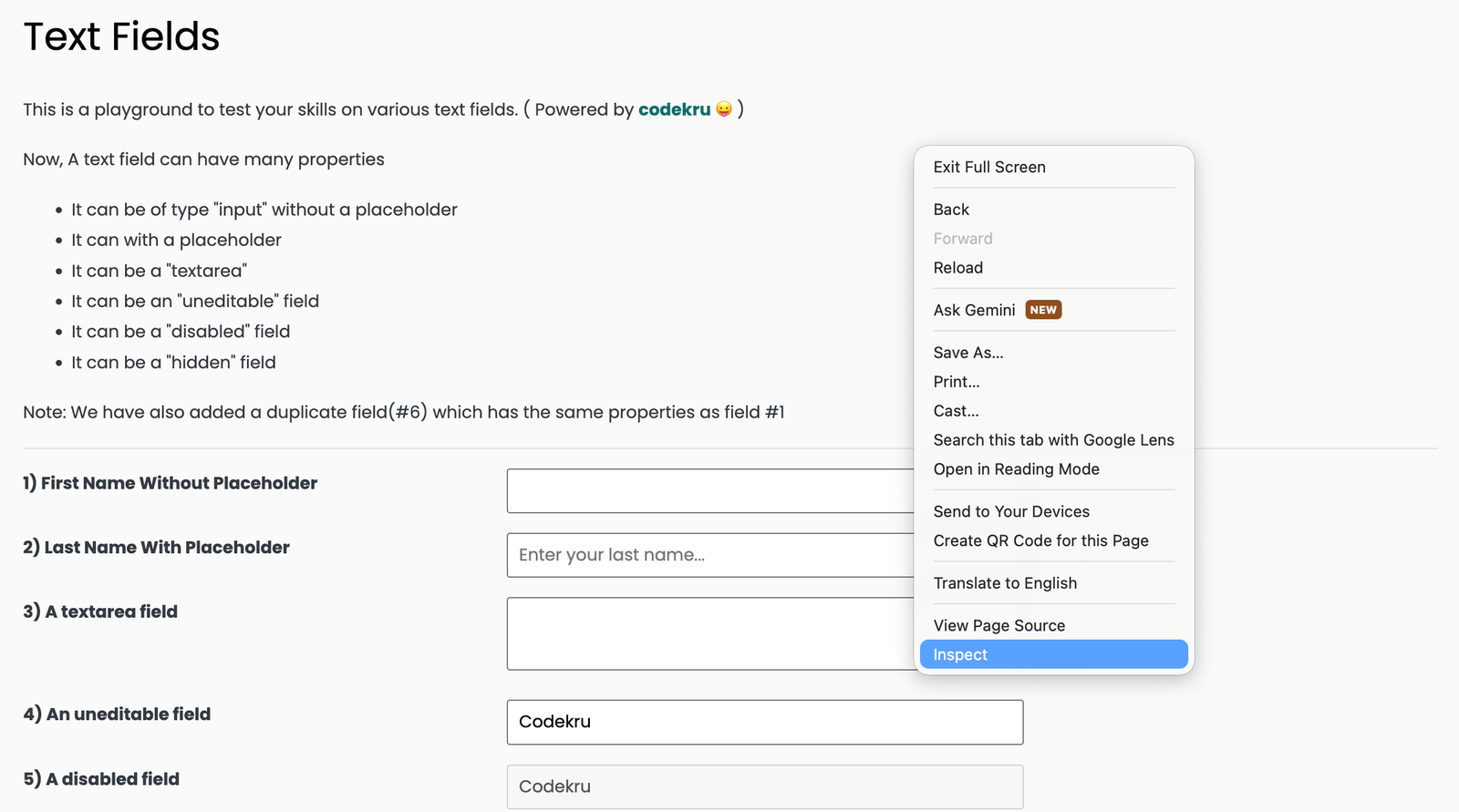
- Open the page and press
F12(or right-click and choose Inspect). - Open the Elements panel.
- Press
Ctrl+F(Windows/Linux) orCmd+F(macOS) inside that panel. - Type your XPath in the search box, starting with
//.
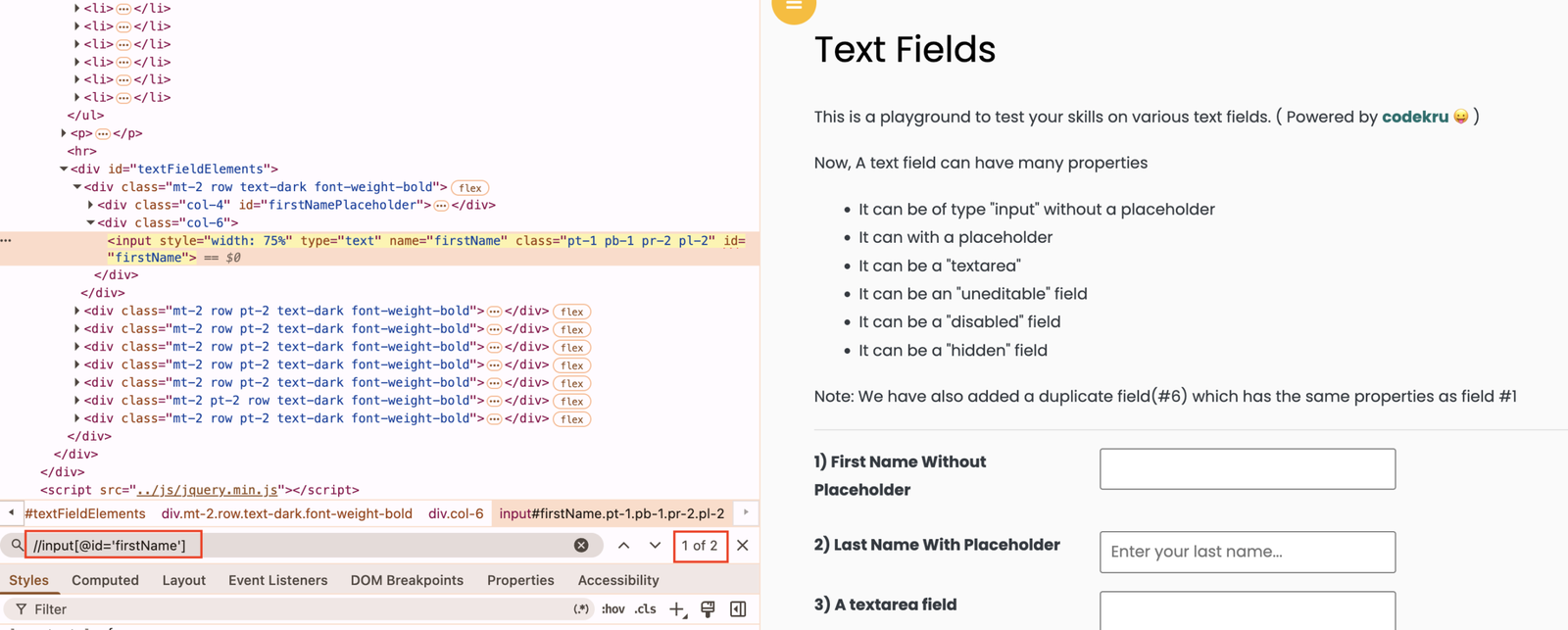
DevTools recognizes the leading // and evaluates it as XPath instead of plain text. It highlights every match and shows a count such as “1/1” or “3/4” next to the search box. Zero matches means the query is wrong for the live DOM. More than one match means findElement will silently grab the first one, so narrow the query until exactly one result remains.
This check-first habit matters even more with XPath than with CSS. A missing bracket or a stray slash often still returns some result instead of an obvious error.
Absolute XPath vs relative XPath
DevTools can also generate an XPath for you: right-click an element in the Elements panel and choose Copy, then Copy full XPath. Resist using that output directly. It looks like this:
/html/body/div[1]/div[2]/div[1]/input[2]That is an absolute XPath. It starts with a single / and lists every ancestor tag from the document root down to the element, including numbered siblings such as div[2]. It works today, and it breaks the moment a designer adds one wrapper div or reorders a section.
A relative XPath starts with // instead, meaning “search anywhere in the document from here,” and it anchors on something meaningful instead of a fixed tree position:
//input[@id='lastNameWithPlaceholder']Every example in this lesson, and in almost every real Selenium test you will write, uses the relative form. Treat a leading /html/body/... path as a warning sign, not a shortcut.
Build relative XPaths
A relative XPath is built from a few small pieces you combine:
| Piece | Meaning | Example |
|---|---|---|
//tag | Any element with that tag, anywhere in the document | //input |
[@attribute='value'] | A predicate: keep only nodes where the attribute equals the value | //input[@id='lastNameWithPlaceholder'] |
//* | Any tag at all (use only when the tag genuinely does not matter) | //*[@id='textFieldElements'] |
//A//B | B nested anywhere under A, at any depth | //*[@id='textFieldElements']//input[@name='lastName'] |
On https://testkru.com/Elements/TextFields, the last-name field looks like this:
<input type="text" name="lastName" id="lastNameWithPlaceholder"
       class="pt-1 pb-1 pr-2 pl-2 lastNameWithPlaceholder"
       placeholder="Enter your last name...">
All of these relative XPaths match that one field today:
driver.findElement(By.xpath("//input[@id='lastNameWithPlaceholder']"));
driver.findElement(By.xpath("//input[@name='lastName']"));
driver.findElement(By.xpath("//*[@id='textFieldElements']//input[@name='lastName']"));
Notice the last line scopes the search inside the practice wrapper (id="textFieldElements") before it looks for the input, the same descendant idea you already used with CSS. The double slash // between the two predicates means “anywhere underneath,” no matter how many layout divs sit in between, so it will not break if the markup gets one more wrapper later.
A single / instead of // means “direct child only,” just like CSS’s > combinator. You will see / again when you chain a found node to its parent or sibling with an axis later in this lesson.
Match visible text and partial attributes
CSS cannot search visible text unless that text happens to live inside an attribute. XPath has functions built for exactly this, and they are some of the most useful tools in this whole lesson.
One important limit before you start: browsers evaluate XPath using the XPath 1.0 engine, which ships a smaller function library than newer XPath versions. The function you will reach for constantly is contains(). There is no working ends-with() function in browser XPath, so do not build a locator around it. If you need a “starts with” partial match, starts-with() is fully supported and reliable.
text() and normalize-space()
Open https://testkru.com/Elements/Buttons. One button reads exactly Disabled button and carries id="disabledButton":
driver.findElement(By.xpath("//button[text()='Disabled button']"));
driver.findElement(By.xpath("//button[normalize-space()='Disabled button']"));
text() looks at the element’s own text node and compares it exactly, character for character. normalize-space() (with no argument) uses the element’s full visible string, then trims leading and trailing whitespace and collapses repeated inner spaces down to single spaces. On a clean label like this one, both match. The difference shows up when a template adds a stray newline, or when the visible words sit inside a child tag such as <span>. In those cases text() can miss the match, while normalize-space() still sees the label. Prefer normalize-space() as your everyday default.
contains() and starts-with()
Back on Text Fields, the last-name input’s id is lastNameWithPlaceholder. You do not have to spell out the whole value:
driver.findElement(By.xpath("//input[contains(@id,'lastName')]"));
driver.findElement(By.xpath("//input[starts-with(@id,'lastName')]"));
contains(@id,'lastName') keeps any element whose id includes that substring. starts-with(@id,'lastName') is stricter: the attribute must begin with that exact text. Both find the intended field on this page, but they are not always interchangeable. contains() would also match an id like previousLastNameField. starts-with() would not. Choose the tighter function whenever it still describes what you mean.
Combine conditions with and / or
Predicates can chain more than one condition with the keywords and and or, the same way an if statement does in Java:
driver.findElement(By.xpath(
        "//input[@name='lastName' and @type='text']"));
This keeps only an input that has name="lastName" and type="text" at the same time. Use and to narrow a search that would otherwise match too broadly, and use or when either of two attributes proves you found the right element (for example, an id that differs slightly between two environments).
Move with XPath axes
Everything so far searches for one element by its own properties. An axis lets you start at one element you already found and step to a relative one: its parent, its neighbor, or an element further up the tree. That relational move is the everyday reason XPath stays in your toolkit alongside CSS.
Open https://testkru.com/Elements/Tables. The employeeTable element’s first data row looks like this:
<tr>
  <td id="emp1Name">John Smith</td>
  <td id="emp1Age">30</td>
  <td id="emp1Dept">Engineering</td>
  <td id="emp1Salary">$80,000</td>
</tr>| Axis | Meaning | Example on this row |
|---|---|---|
parent::tag | The direct parent node | //td[@id='emp1Name']/parent::tr |
following-sibling::tag | A later sibling under the same parent | //td[@id='emp1Name']/following-sibling::td[@id='emp1Salary'] |
following-sibling::tag[n] | The nth later sibling, counted from this node | //td[@id='emp1Name']/following-sibling::td[2] |
ancestor::tag | Any ancestor further up the tree, not only the direct parent | //td[@id='emp1Name']/ancestor::table |
parent
WebElement row = driver.findElement(
        By.xpath("//td[@id='emp1Name']/parent::tr"));
You start at the name cell, then step up one level with parent::tr. This returns the whole <tr> element that wraps every cell in John Smith’s row.
following-sibling
WebElement salary = driver.findElement(By.xpath(
        "//td[@id='emp1Name']/following-sibling::td[@id='emp1Salary']"));

WebElement dept = driver.findElement(By.xpath(
        "//td[@id='emp1Name']/following-sibling::td[2]"));
following-sibling::td[@id='emp1Salary'] reads naturally: start at the name cell, look at later sibling cells, and keep the one whose id is emp1Salary. The second line reaches a cell in the same row by position: the second sibling after the name cell is the department cell. Both work on this page. The id-based version stays correct if a column is reordered. The positional version would silently point at the wrong column. Prefer the named version whenever a stable id or attribute exists.
ancestor
WebElement table = driver.findElement(
        By.xpath("//td[@id='emp1Name']/ancestor::table"));
ancestor::table climbs past the row and finds the enclosing <table id="employeeTable">, no matter how many <tbody> or wrapper elements sit in between. This is the axis to reach for whenever you need to confirm “this cell lives inside that specific container,” or when you need a handle on the whole table after locating one cell inside it.
Patterns for dynamic attributes
Real applications often generate ids at runtime: a shopping cart row might get row-4821, a form field might get ctrl_a93f2. The exact number changes every time the page loads, but a stable prefix or substring usually survives. contains() and starts-with() are exactly the tools built for that.
Watch how easily a partial match can overreach, though. On Tables, every cell in John Smith’s row shares the same emp1 prefix:
// On this row, starts-with matches four cells (name, age, dept, salary):
driver.findElements(By.xpath("//td[starts-with(@id,'emp1')]")).size(); // 4
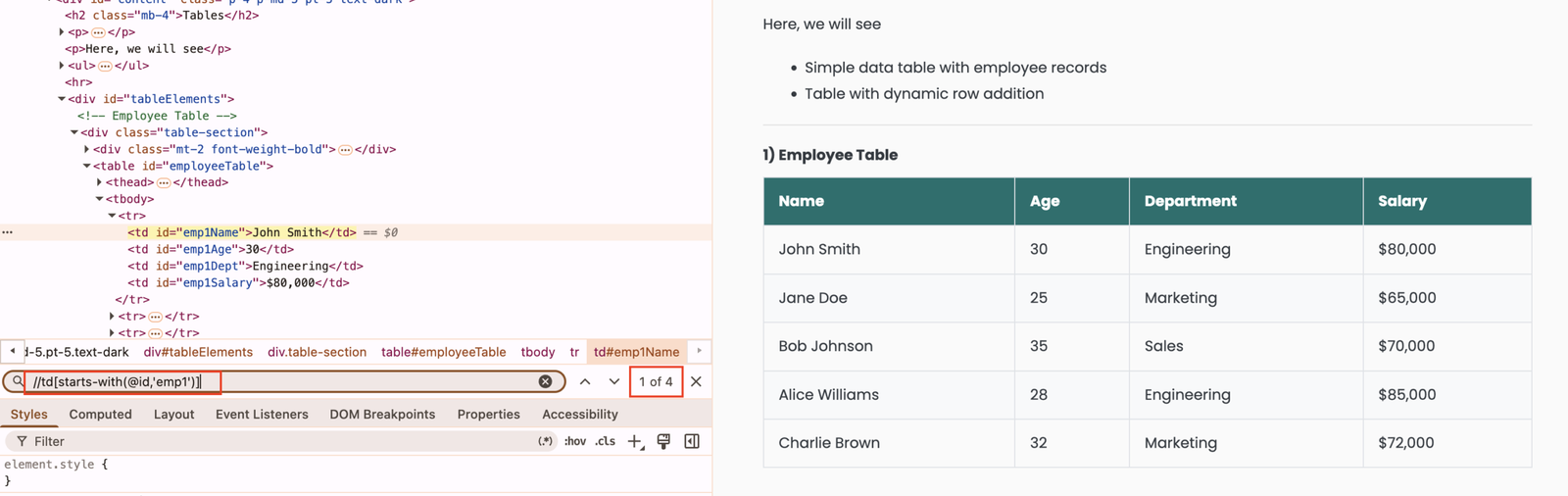
That query returns all four cells, not one. It is a useful trick when you genuinely want every cell in a row, but it is a trap if you expected exactly one match and called findElement instead of findElements. Always confirm the match count in DevTools before you trust a contains() or starts-with() locator in Java.
When the value you actually know is visible text rather than a predictable id, combine a text predicate with an axis instead of guessing at attribute patterns:
driver.findElement(By.xpath(
        "//tr[td[normalize-space()='John Smith']]/td[@id='emp1Salary']"));
Read this from the inside out: td[normalize-space()='John Smith'] finds a cell whose text is exactly “John Smith.” Wrapping that inside tr[...] finds the row that contains such a cell. Then /td[@id='emp1Salary'] steps back into that same row and grabs the salary cell. “Find the row by something the user can read, then read a specific column from it” is one of the most common real-world uses of XPath: order tables, search results, and inbox lists all need this move, and none of them promise a predictable id ahead of time.
Put XPath into one runnable test
This example stays in your existing Maven TestNG project. It visits Text Fields, Buttons, and Tables, and uses five of the XPath patterns from this lesson.
Where to save the class
Create XPathPracticeTest.java under src/test/java/com/codekru/tests/ (adjust the package if your project differs).
The complete example
package com.codekru.tests;

import org.openqa.selenium.By;
import org.openqa.selenium.WebDriver;
import org.openqa.selenium.WebElement;
import org.openqa.selenium.chrome.ChromeDriver;
import org.testng.Assert;
import org.testng.annotations.AfterMethod;
import org.testng.annotations.BeforeMethod;
import org.testng.annotations.Test;

public class XPathPracticeTest {

    private WebDriver driver;

    @BeforeMethod
    public void setUp() {
        driver = new ChromeDriver();
    }

    @Test
    public void shouldFindElementsWithRelativeXPath() {
        driver.get("https://testkru.com/Elements/TextFields");

        WebElement lastName = driver.findElement(
                By.xpath("//input[@id='lastNameWithPlaceholder']"));
        lastName.clear();
        lastName.sendKeys("codekru");
        Assert.assertEquals(lastName.getAttribute("value"), "codekru");

        WebElement byStartsWith = driver.findElement(
                By.xpath("//input[starts-with(@id,'lastName')]"));
        Assert.assertEquals(
                byStartsWith.getAttribute("placeholder"),
                "Enter your last name...");

        driver.get("https://testkru.com/Elements/Buttons");

        WebElement disabledButton = driver.findElement(
                By.xpath("//button[normalize-space()='Disabled button']"));
        Assert.assertFalse(disabledButton.isEnabled());

        driver.get("https://testkru.com/Elements/Tables");

        WebElement salary = driver.findElement(By.xpath(
                "//td[@id='emp1Name']/following-sibling::td[@id='emp1Salary']"));
        Assert.assertEquals(salary.getText().trim(), "$80,000");

        WebElement department = driver.findElement(By.xpath(
                "//tr[td[normalize-space()='John Smith']]/td[@id='emp1Dept']"));
        Assert.assertEquals(department.getText().trim(), "Engineering");
    }

    @AfterMethod
    public void tearDown() {
        if (driver != null) {
            driver.quit();
        }
    }
}
What each part does:
@BeforeMethodopens a fresh Chrome session before the test runs.//input[@id='lastNameWithPlaceholder']is the simplest relative XPath: match by unique id. Typingcodekruand reading thevalueattribute back proves you landed on an editable field.//input[starts-with(@id,'lastName')]practices a partial-match function instead of the full id string, and confirms it still reaches the same field by checking itsplaceholder.//button[normalize-space()='Disabled button']matches by visible text, something CSS could not do directly.isEnabled()returnsfalsebecause the button carries thedisabledattribute.//td[@id='emp1Name']/following-sibling::td[@id='emp1Salary']starts at the name cell and steps sideways with an axis to reach the salary cell in the same row.//tr[td[normalize-space()='John Smith']]/td[@id='emp1Dept']finds the row by its visible text, then reads a specific column from that row, the dynamic-table pattern from the previous section.@AfterMethodcallsquit()so the browser closes after the test passes or fails.
How to run it and what to expect
- Save the class in your test package.
- Run
shouldFindElementsWithRelativeXPathfrom IntelliJ or your usual TestNG/Maven command. - Chrome should open Text Fields, type into the last name box, move to Buttons, check the disabled button, move to Tables, read the salary and department cells, then close.
If any query returns zero or too many matches, paste the exact XPath into DevTools search on the same page first. Fix it there, then copy the corrected string back into Java.
Common beginner mistakes
- Copying “Copy full XPath” from DevTools. That absolute path lists every ancestor tag by position and breaks the moment the page markup shifts. Rewrite it as a relative query anchored on an id or attribute.
- Confusing
text()withnormalize-space().text()compares the raw string exactly. Extra whitespace in the markup makes it fail silently. Default tonormalize-space()unless you have a specific reason not to. - Reaching for
ends-with(). Browsers run XPath 1.0, which does not ship that function. Usestarts-with()orcontains()instead. - Letting
contains()orstarts-with()overmatch. A short substring can match far more elements than you expect, as the four-cell example on Tables showed. Always confirm the match count in DevTools. - Forgetting
findElementreturns the first match. A broad//inputor//divsilently grabs the wrong control instead of throwing an error. - Building long axis chains when a predicate would do. If you find yourself writing four axes in a row, look for one stable attribute or one text predicate that gets you there in a single step.
Practice assignment
Turn today’s patterns into muscle memory: inspect first, prove the XPath in DevTools, then use By.xpath in Java.
Your task:
- Open the assignment page linked below.
- Inspect the target element and write a relative XPath, anchored on an id, name, or other stable attribute.
- Confirm the XPath matches exactly the intended element in DevTools search.
- Write a Selenium Java test that finds it with
By.xpath(...). - Assert one fact that proves you found the right element.
- Do not look up a finished solution.
Continue practicing: XPath – Basics
When you want more practice with functions and axes after that, continue with XPath Functions – contains() and starts-with() and XPath Axes – Parent and Sibling. Browse the full set anytime in the Selenium learning catalog.
What is next
You can now write relative XPath, match elements by visible text and partial attributes, and move through the page tree with parent, following-sibling, and ancestor.
Next up is Locator Strategy: Writing Stable, Maintainable Selectors. You now know id, CSS, and XPath individually. That lesson brings all three together into one decision process so you pick the right locator on the first try, on any page, in any real project.
Summary
- XPath is the XML Path Language;
By.xpathasks the browser’s own XPath engine to find matching nodes. - Prefer relative XPath (
//...) over absolute XPath (/html/body/...), which breaks whenever the markup shifts. - Build relative XPaths from a tag, an
[@attribute='value']predicate, and//for “anywhere underneath.” - Use
text()andnormalize-space()to match visible text; prefernormalize-space()for everyday use. - Use
contains()andstarts-with()for partial attribute matches on dynamic ids; browsers do not supportends-with(). - Combine conditions with
and/orwhen one attribute alone is not specific enough. - Use axes (
parent::,following-sibling::,ancestor::) to move between related elements when a single attribute locator is not enough. - Combine a text predicate with an axis to find a table row by its content, then read a specific column, a pattern you will reuse constantly on real dynamic pages.